You can create, edit, and delete Text To Give keywords by going to Categories > Text To Give. Then follow the steps below.
How to create a Text To Give keyword
-
Click on the ➕ icon at the right.

-
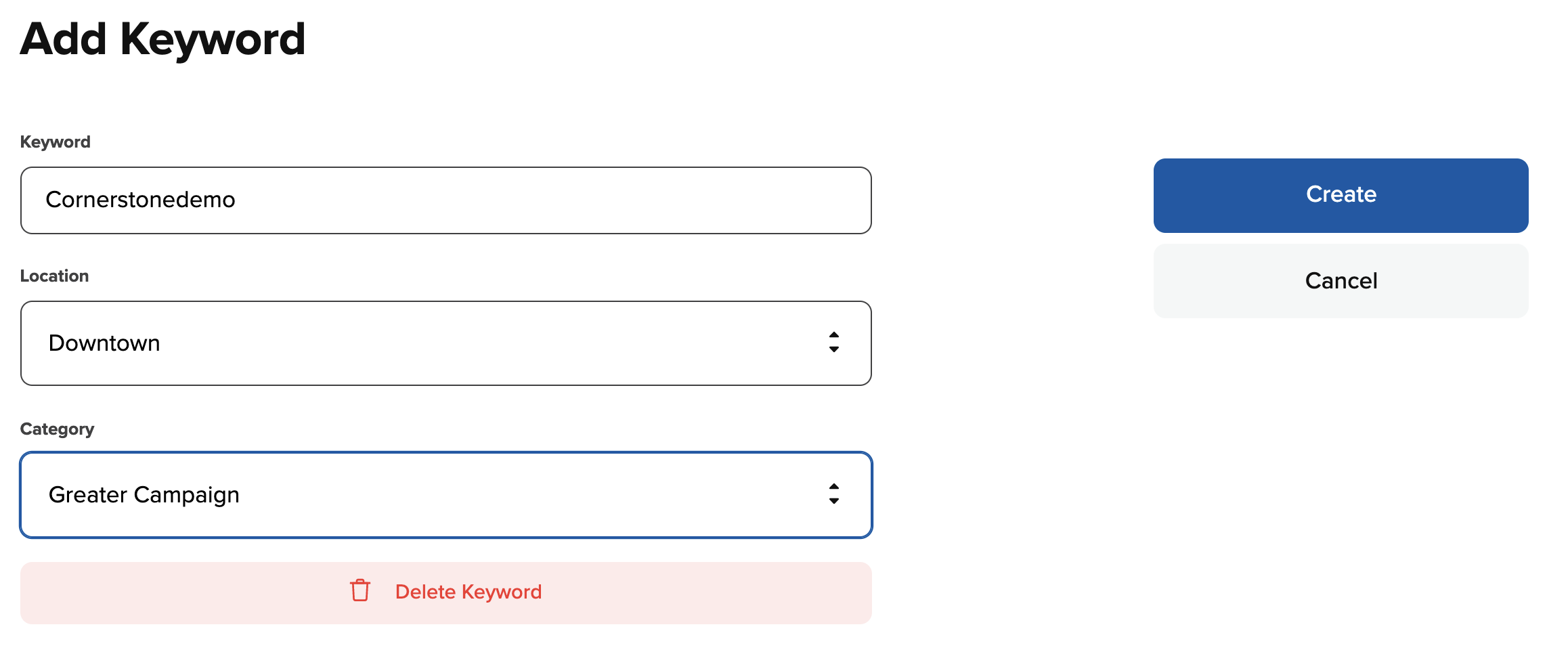
Then enter in the keyword name, campus, and category.
-
Select Save to save the changes. You have now created a new Text To Give Keyword.

How to edit a Text To Give keyword
-
Click on the Text To Give keyword detail.

-
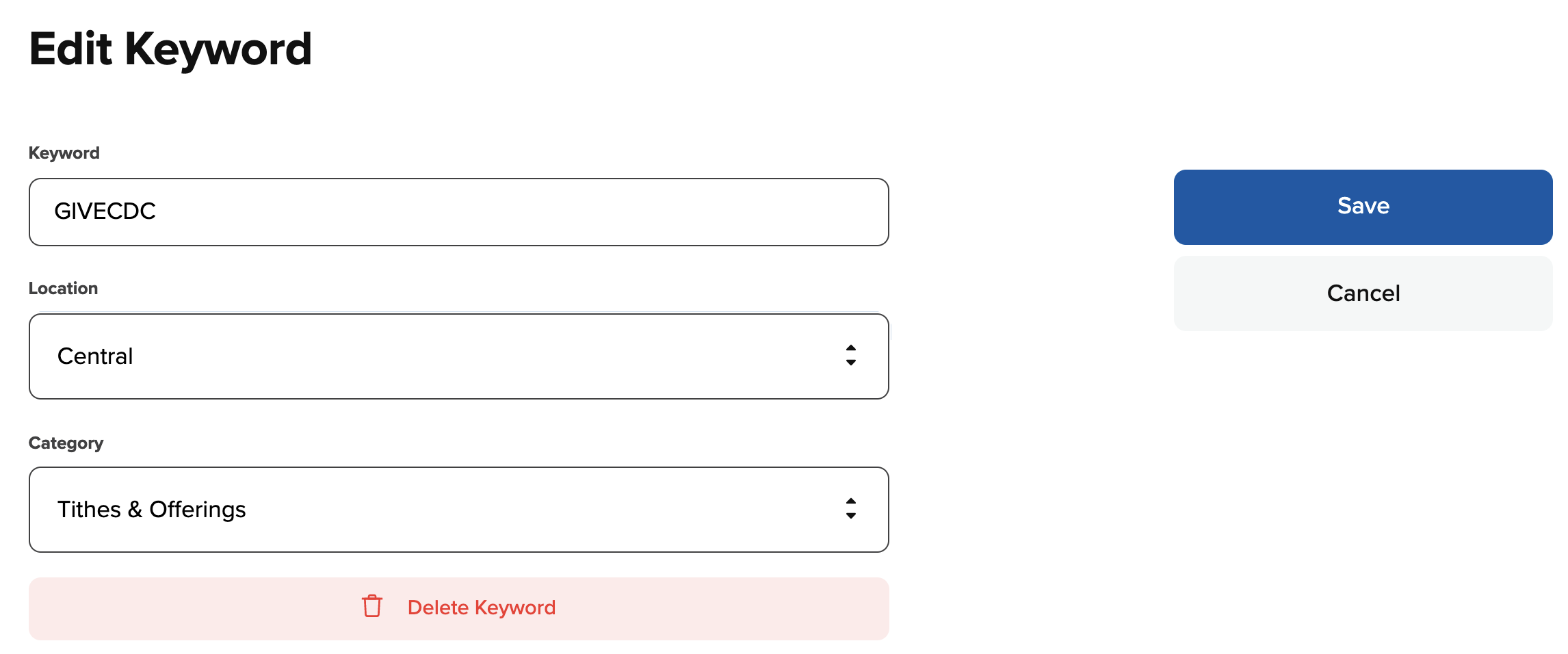
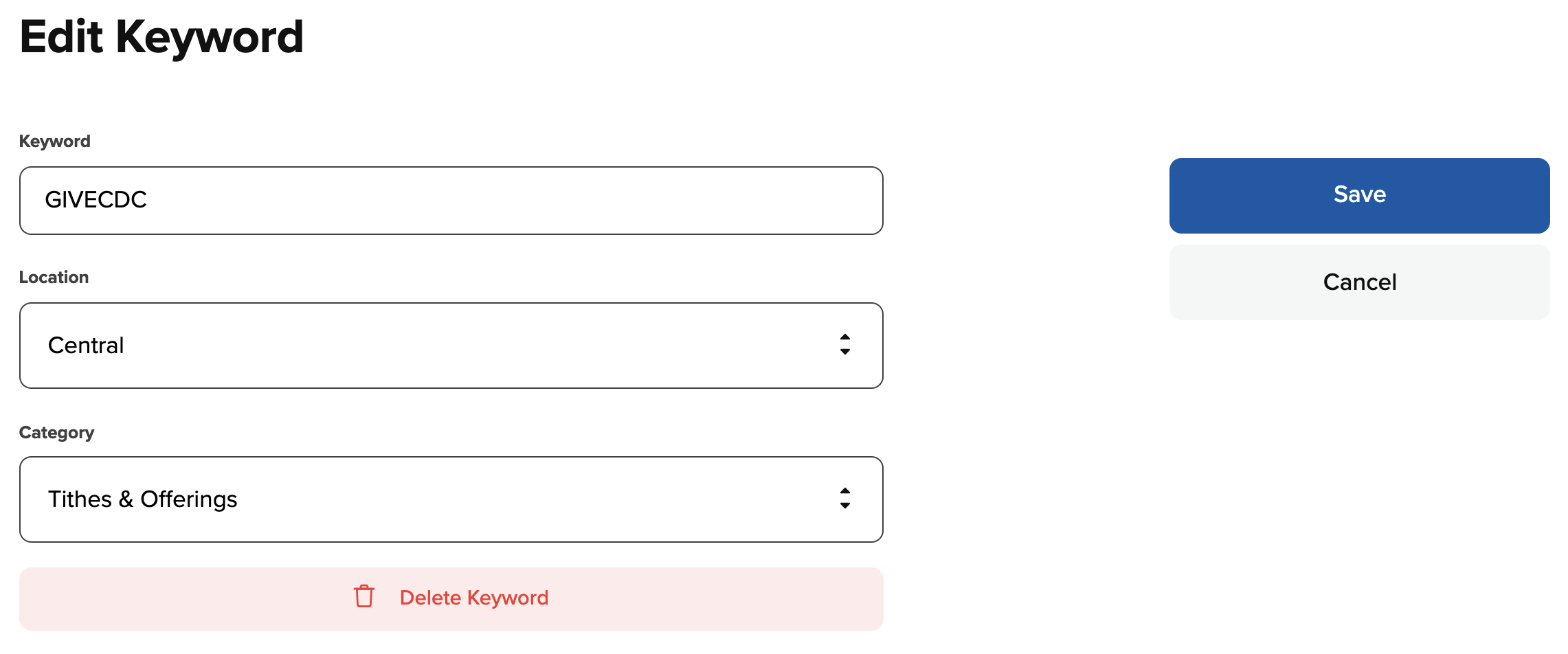
Then edit the keyword name, campus, or category.
-
Select Save to save the changes. You have now edited your Text To Give Keyword.

How to delete a Text To Give keyword
-
Click on the keyword detail.

-
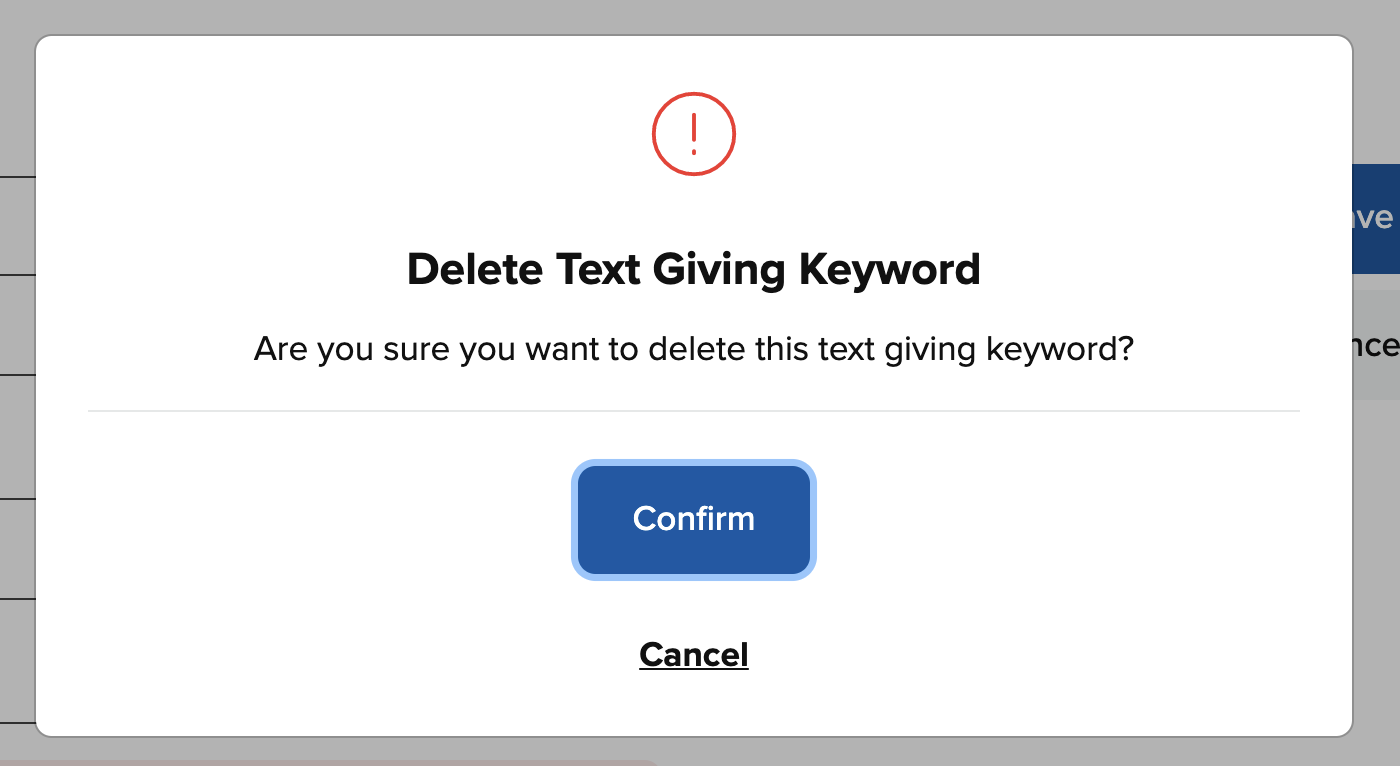
Then click on the red Delete Keyword button.
-
Then click Confirm.