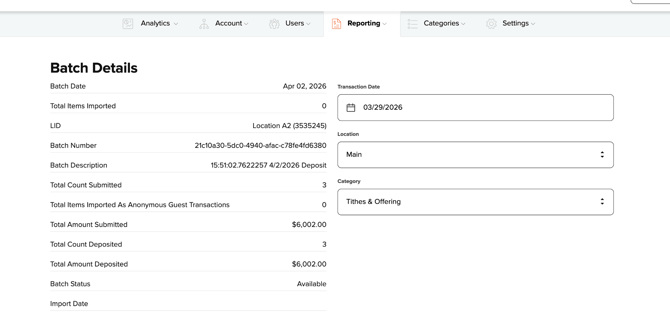
When a batch of scanned checks has been closed for processing, it will appear as Available for import within a short time on the Check Scanning page in SecureGive. Click on the available batch to assign checks to donors and categories. The first step is to choose the Date to assign to the checks along with the Location and default Category.
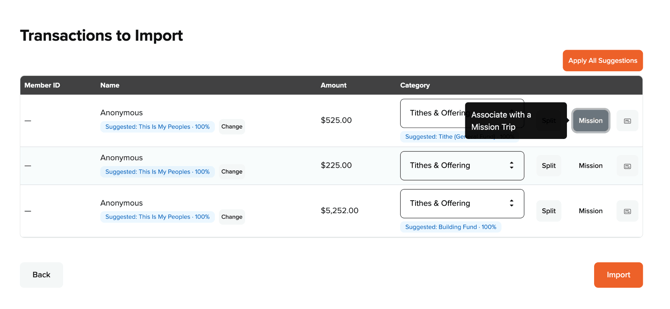
Your next step will be assigning each check to the donor and categories. Soon, you may begin seeing some suggested matches in blue for each of these and notice a button that says "Apply All Suggestions". **This feature is still being developed. It is not ready to use yet.**
We recommend making all splits and member associations before you Import the checks. Any splits made after import will be treated as adjustments and will add a $0 line item to All Transactions to note the changes. Member changes after import will be treated as a Re-Link and will assign the check to the new individual without an adjustment.
To assist with assigning the checks, you are now able to view the check image. It can be seen by clicking the check image icon to the far right.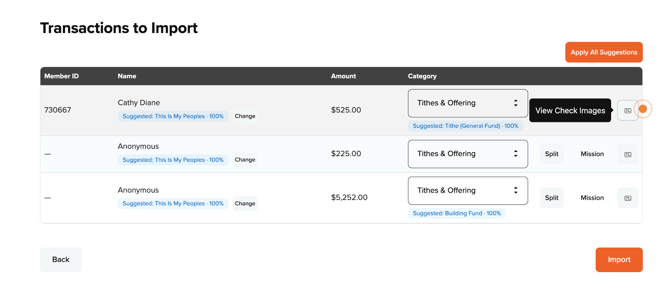
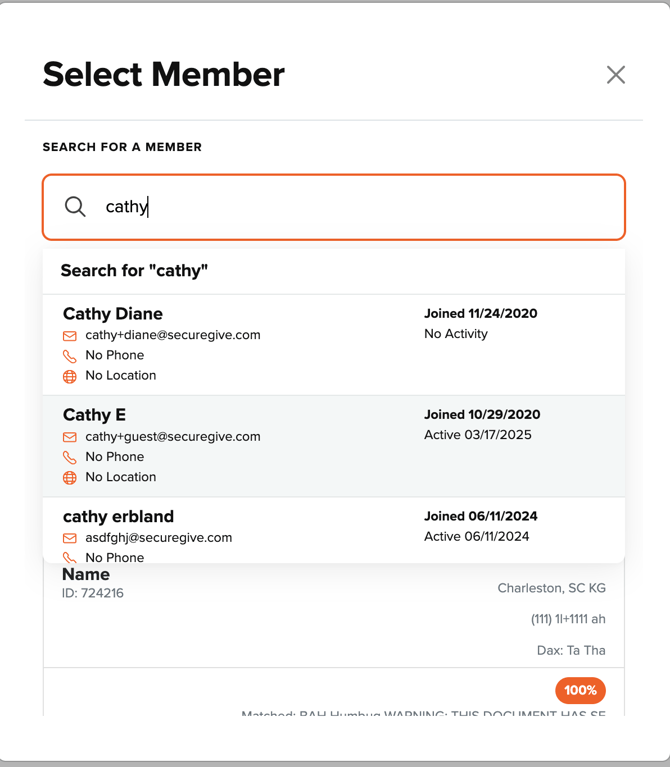
To assign the check to a particular member, click either the Suggested blue text or click Change and search for the donor by name or email address.
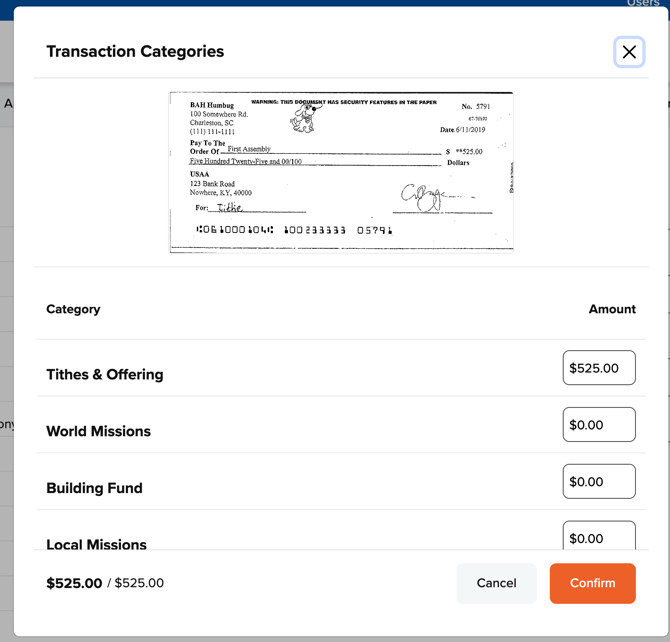
The check image will also be displayed when choosing to Split checks. Clicking the Split button allows you to assign the check to multiple categories.
When you have completed assigning all checks to the donor and categories, Click the Import button at the bottom of the screen to post the checks. They will appear on the All Transactions report as well as the donor records. You will be able to view the check image under the Transaction Details and add a check number there if desired. **Please note that once you have imported the batch into the All Transactions Report, going back and using the Re-Associate button will re-assign all transactions within the batch to the Default category for the batch. To make adjustments after the batch has been imported, you must do that through each individual transaction in the All Transactions report.**
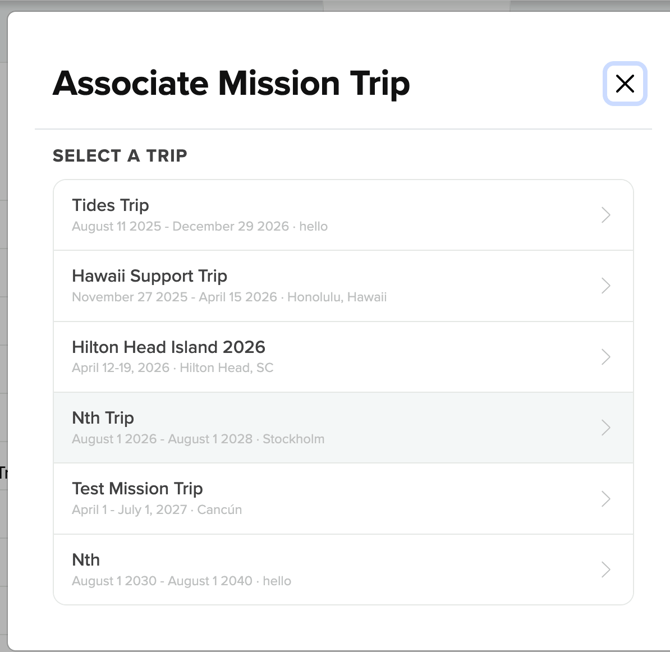
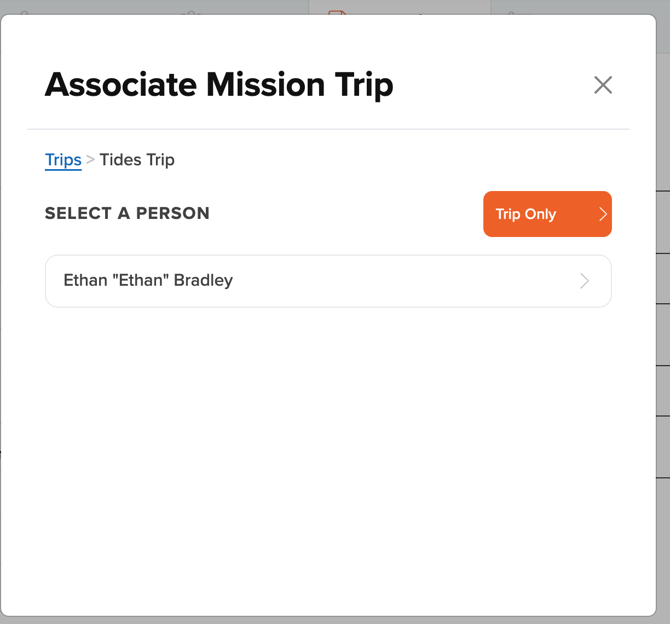
**The Mission button will display for those organizations utilizing our Managed Missions integration. This will allow a scanned check to be attributed to a Mission Trip and Attendee in Managed Missions.