
How To Unpack The Irvine Kiosk
-
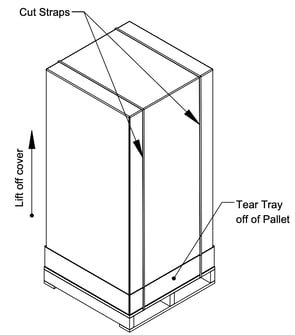
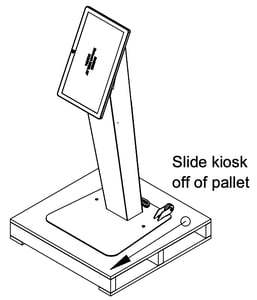
Cut straps and remove cover. Tear tray off of pallet and lift upwards to remove.
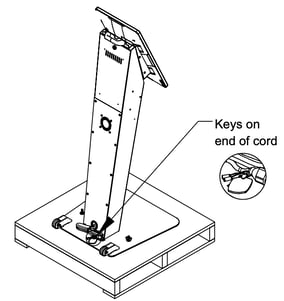
- Cut plastic tie and remove keys from power cord.
- Unscrew and remove the wing nuts and washers at the bottom of the unit. Push the bolts
down until they fall with the split-lock washers to floor.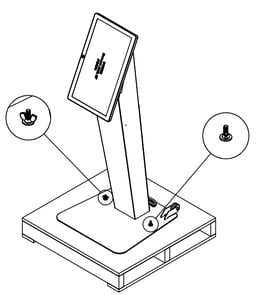
- Put the wing nuts, bolts and washers away.
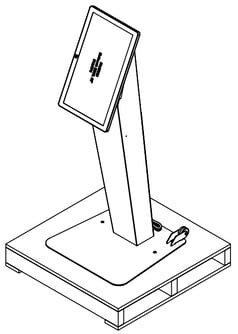
- Grab kiosk body and walk kiosk over front edge of pallet until kiosk can be tilted forward and leading edge of base makes contact with floor. Hold kiosk in tilted position and slide pallet rearward until it is clear of kiosk.
Connecting Kiosk To Power and Internet
-
Once the kiosk is removed from the pallet, connect the kiosk's electrical cord to a nearby outlet.
-
You can connect the kiosk's computer to the internet with either an ethernet cable or through Wi-Fi. If you have trouble connecting your kiosk to the internet, make sure Ports 80 & 443 are open in your network. Our servers require those ports to be open.
Setting Up Card Reader And Registering The Kiosk Application
- Place the Lane 3600 card reader on the card reader bracket. (You would have received the card reader in a separate shipment.)
-
Follow the steps in the link below to power on the card reader and connect it to the internet.
Connect The Ingenico Lane/3600 Card Reader To Power And To The Internet - Let us know once the above steps have been done, and we will remote in to the kiosk to register the kiosk application with the card reader.
- Complete a test transaction.
Close The Kiosk App
If you ever need to close the SecureGive kiosk application, you can do it from within the kiosk app by following the steps below.
*Please note: these steps only apply if the kiosk app has been registered. If the kiosk app has not been registered, you will need to attach a mouse and keyboard to close the app. We can also remote into the kiosk and close it for you. Just let us know if that is needed.
-
Tap the kiosk app version number in the bottom right corner (example: 1.101.25).
-
Tap in your administrator email and password, and then tap Sign-In.
-
Then tap the Quit App button to close the kiosk app.