
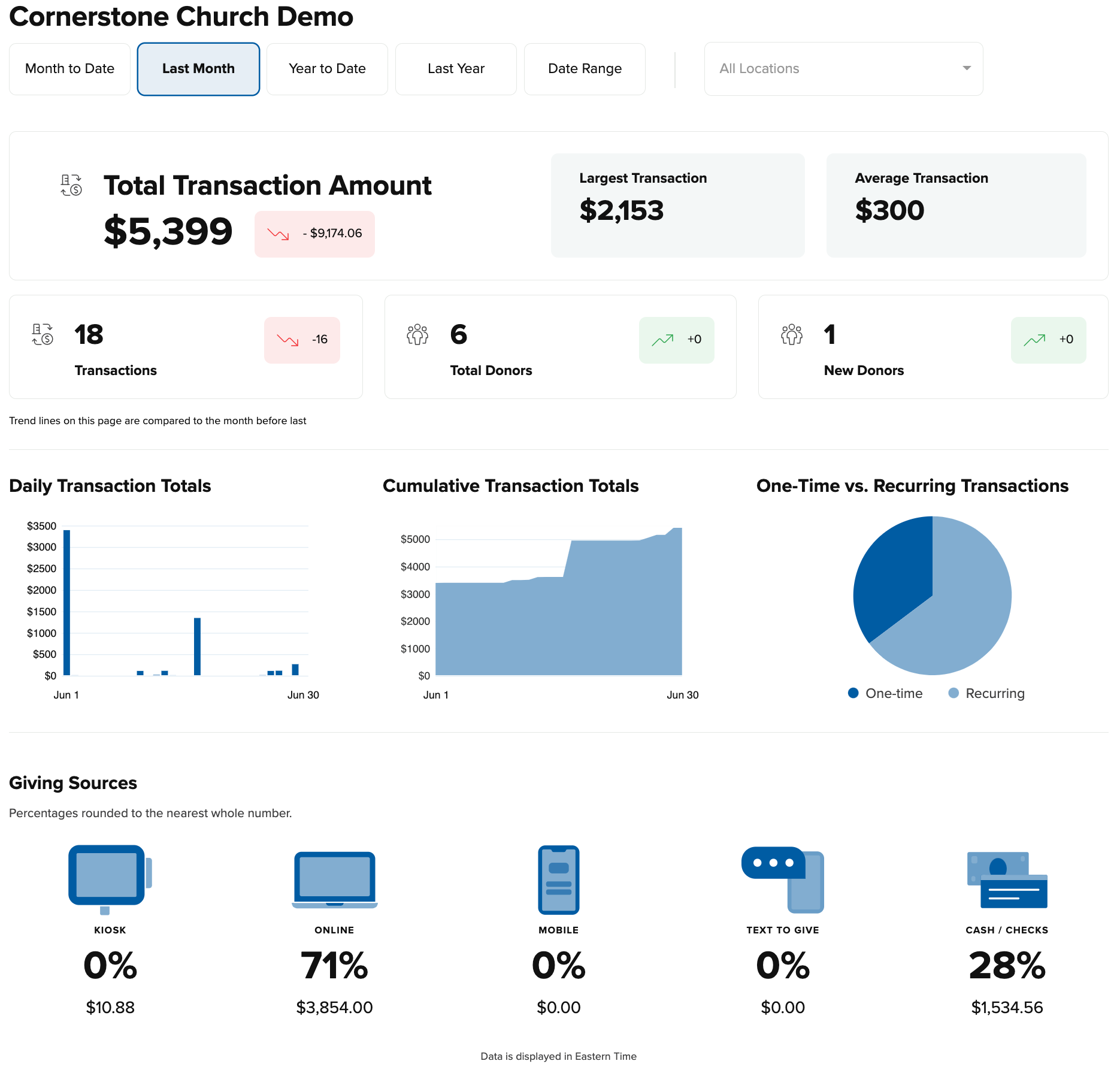
When you log into your Admin Site, you will arrive at the main analytics dashboard which shows your organization’s donor and giving statistics. You can choose to view statistics from the current month to date, last month, year to date, and last year just by clicking on the appropriate button. The Month To Date button is selected by default. You also have the option of entering a custom date range for statistics. You can do this by selecting the Date Range button and entering your beginning and ending dates. You can filter these statistics by one or more locations/campuses by using the dropdown menu for Locations.
You can see additional info by clicking The Total Transaction Amount, Transaction, Total Donors, and New Donors buttons:
- the Total Transaction Amount and Transactions buttons will take you to the All Transactions page where you will see a list of transactions that make up the total transaction amount.
- the Total Donors button will take you to the Members page where you will see a list of donors who completed all the transactions for that time period.
- the New Donors button will take you to the Members page where you will see a list of donors who made their first transaction within the selected time frame.
Beneath those buttons is a graph on the left that shows daily or monthly transaction totals depending on which time frame is selected. If you have the Month To Date or Last Month buttons selected, you will see daily transaction totals. If you have the Year To Date or the Last Year buttons selected, you will see monthly transaction totals. The middle graph shows the total cumulative transactions for the time period selected. The circular graph on the right shows a visual breakdown of the difference in One Time vs. Recurring donation usage for the time period selected. You can hover over the different bars or sections of each graph to see additional info.
The Giving Sources section at the bottom shows the percentage of giving that was made through each of our giving platforms: kiosk, online, mobile, text to give, and cash/checks.
If you are looking for training information on the Admin site or have specific questions, you can contact us at Care@securegive.com.