
- Close the kiosk app. If you don't how to close the kiosk app, then read this Help Center article: Close The Windows Kiosk App
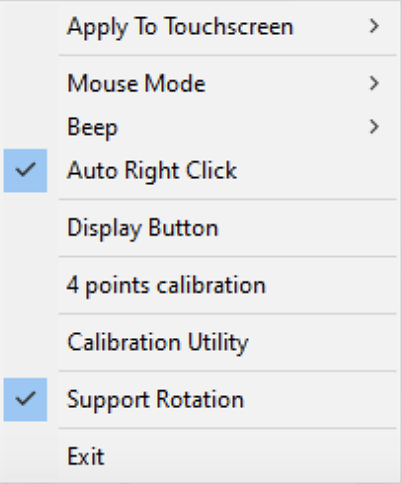
- Right-click the eGalaxTouch icon
 at the right of the Taskbar. You can also replicate a right-click with your finger by pressing and holding on the icon.
 - Choose "4 points calibration" from the pop-up menu.
- Touch the touch points.
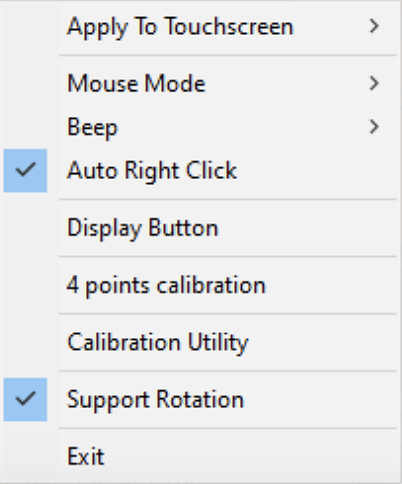
- Then complete a Linearization of the touchscreen by right-clicking the eGalaxTouch icon and choosing "Calibration Utility" from the pop-up menu.
- Click "Yes" from the "Do you want to allow this app to make changes to your device" pop-up.
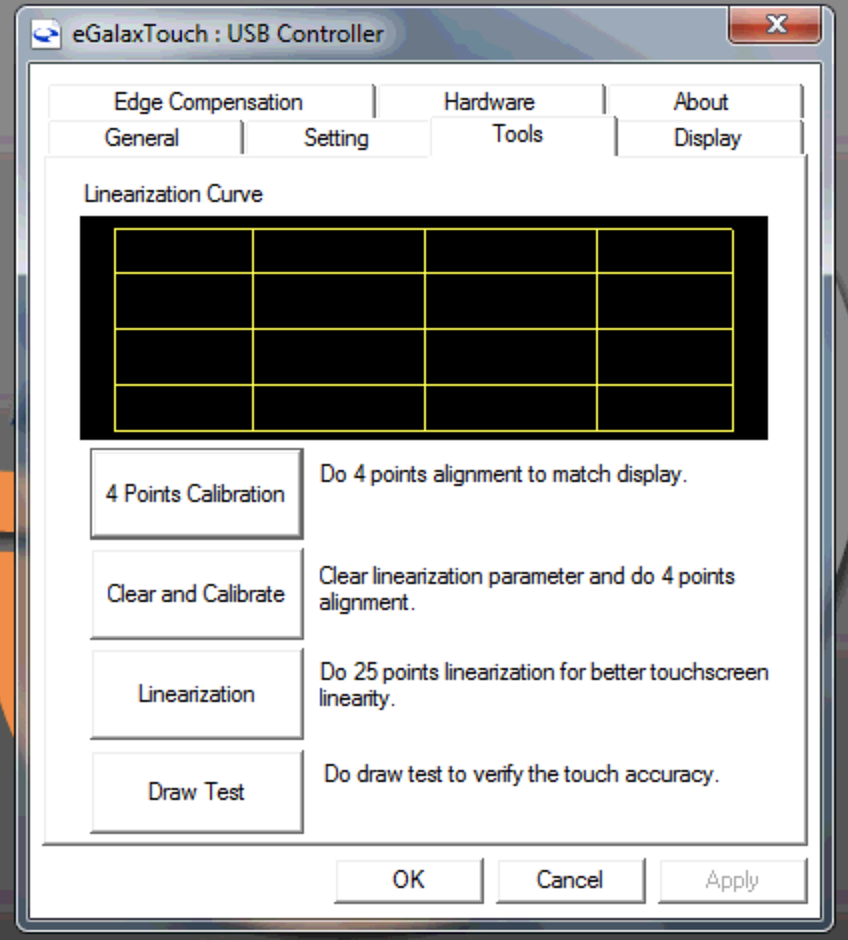
- From the eGalaxTouch: USB Controller window, choose the Tools tab. Then select Linearization.
- Touch the touch points.