
How To Calibrate Touchscreen
If the touchscreen on your Olea stand-alone kiosk isn't properly recognizing finger taps, then follow the steps below to complete a touchscreen calibration. You may have to connect a mouse to the computer to initiate the calibration.
-
Close the kiosk app. If you don't how to close the kiosk app, then read this Help Center article: Close The Windows Kiosk App
-
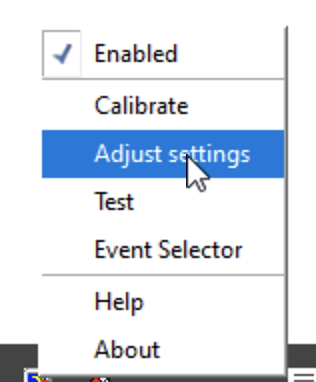
Right-click on the Pointer Device Settings icon at the right of the Taskbar. (You can also replicate a right-click with your finger by pressing and holding on the icon.)

-
Choose Adjust Settings in the menu.
-
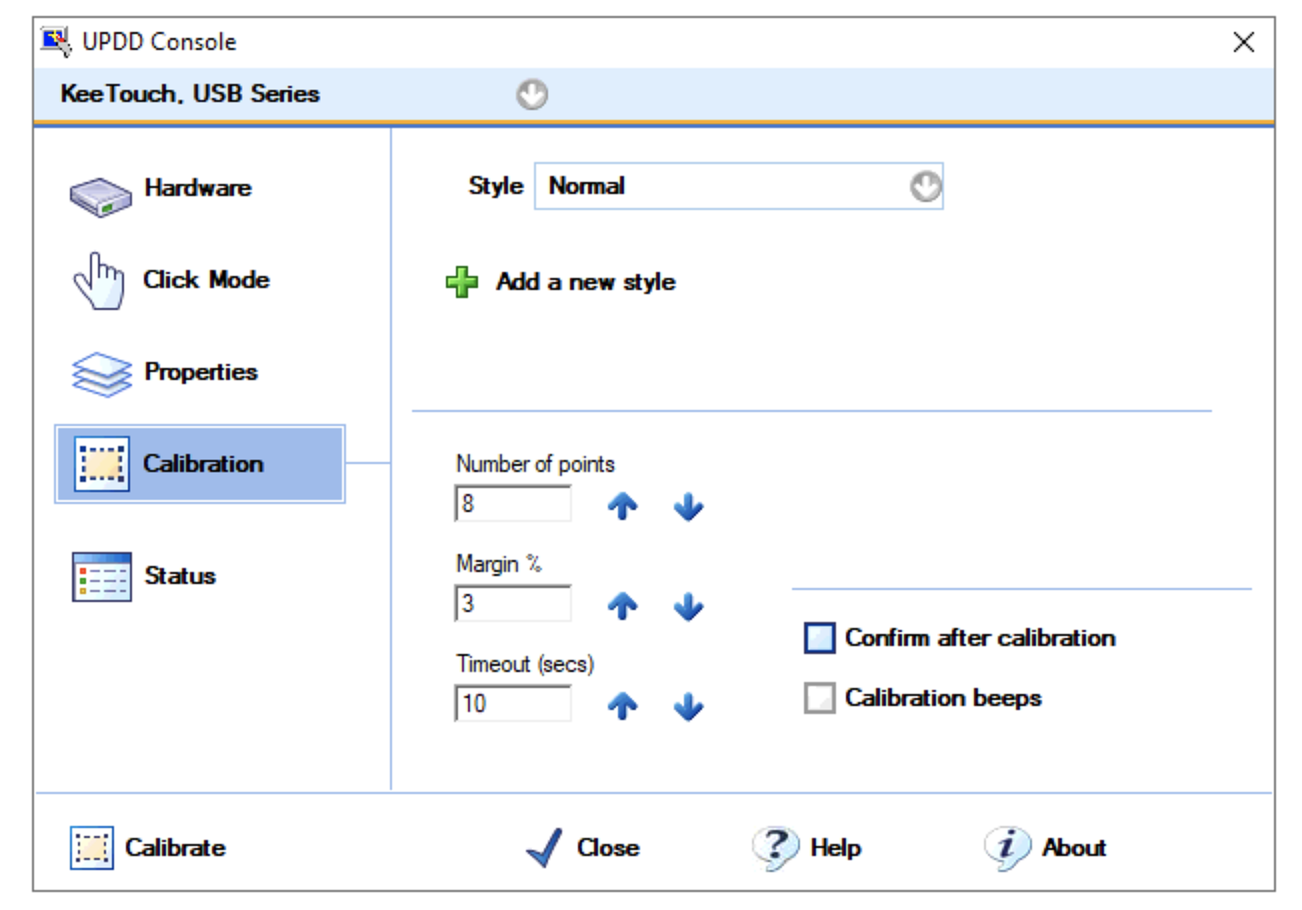
Highlight the Calibration tab on the left side of the UPDD Console.
-
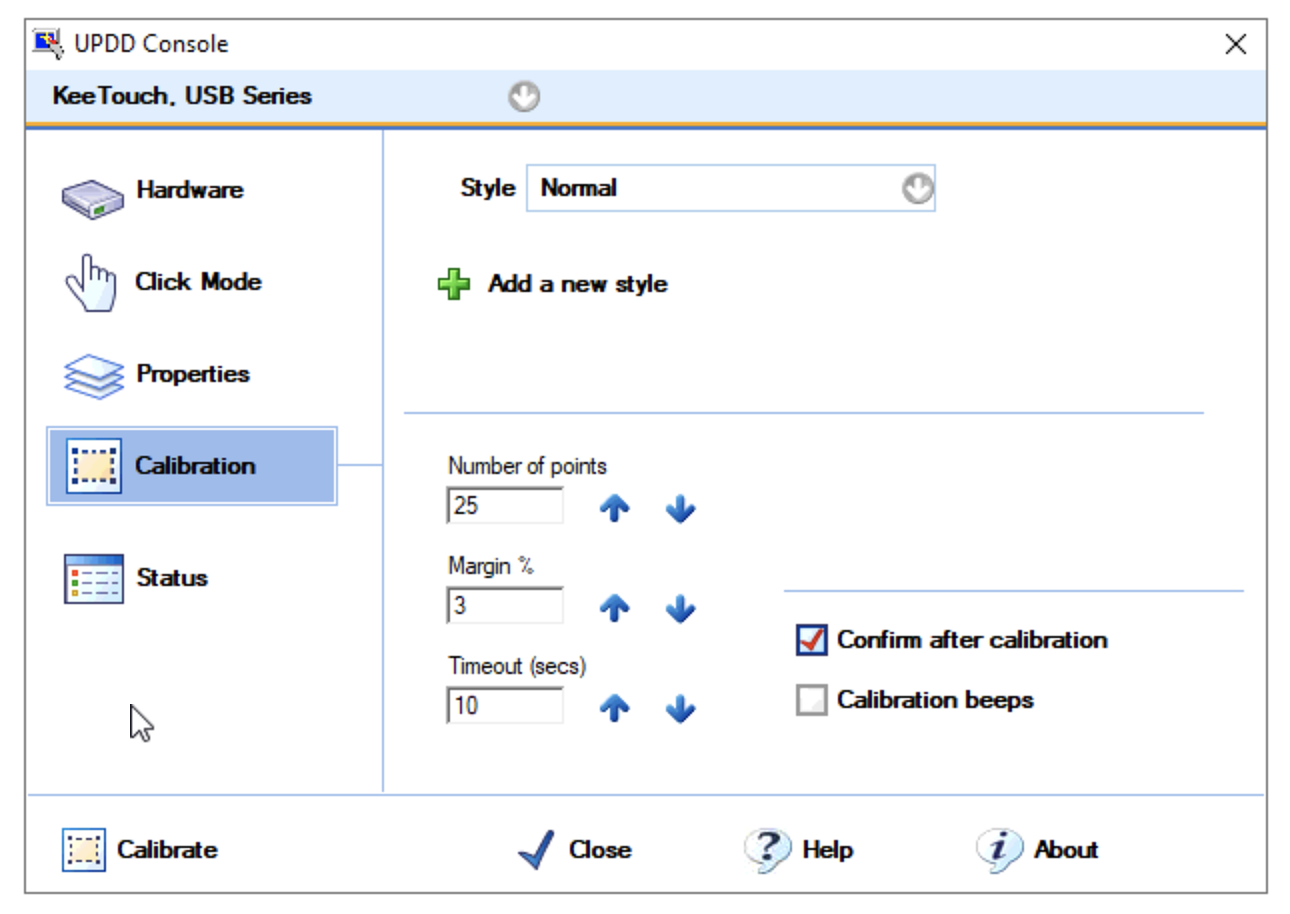
Change the number of calibration points to 25 and check the Confirm After Calibration box.
-
Tap on the Calibrate button at the lower left corner of the UPDD Console.
-
Touch the touch points
 and then confirm.
If after completing the calibration process the touchscreen is still not responding to touch, then read the Help Center article below: