
To view administrators
- Log into your account and go to Users > Administrators.
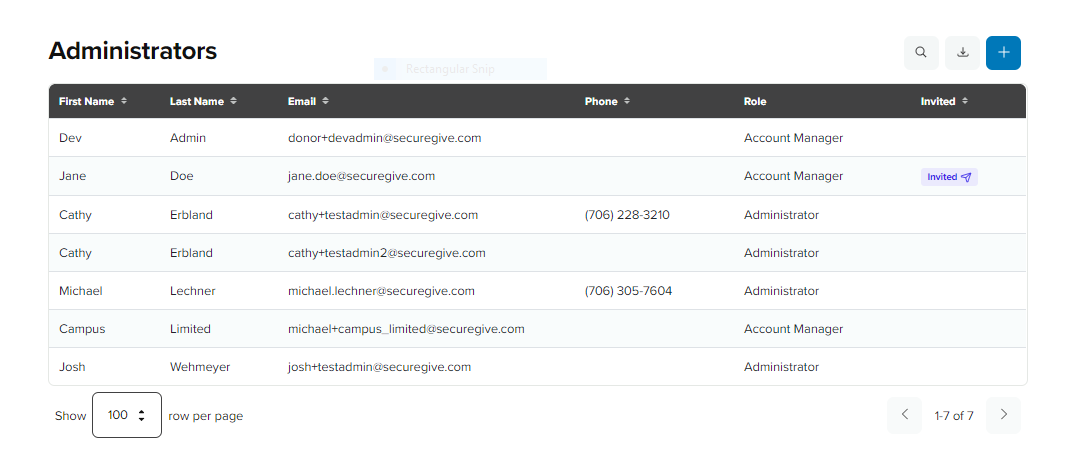
- You will see the list of administrators that have been created in your dashboard. This list will indicate names, emails, and roles of the administrators and will also display an Invited badge if they have been invited to be an administrator but have not accessed it yet.
To add an administrator
1. Select the blue + button in the upper right.
2. Enter their first and last name and their email.
3. Select the User Role you would like for them to have. *Click just below that to see the explanations of each role.
4. If you have multiple locations set up, be sure to choose whether you want them to have access to All Locations or limited to particular ones.
5. Select "Send Invite" and an email will be sent to the user to establish their Administrative account. If the administrator already has a donor account under the email they want to use, they will simply click "Accept" on the email and "Sign-In" with those credentials. If they do not already have an account under that email, they will click "Accept" then "Sign-Up" to establish their account.
To delete an administrator:
To delete an administrator profile, click on their name from the list of Administrators. Then use the trashcan icon to the upper right to delete their privileges. You will be asked to confirm.