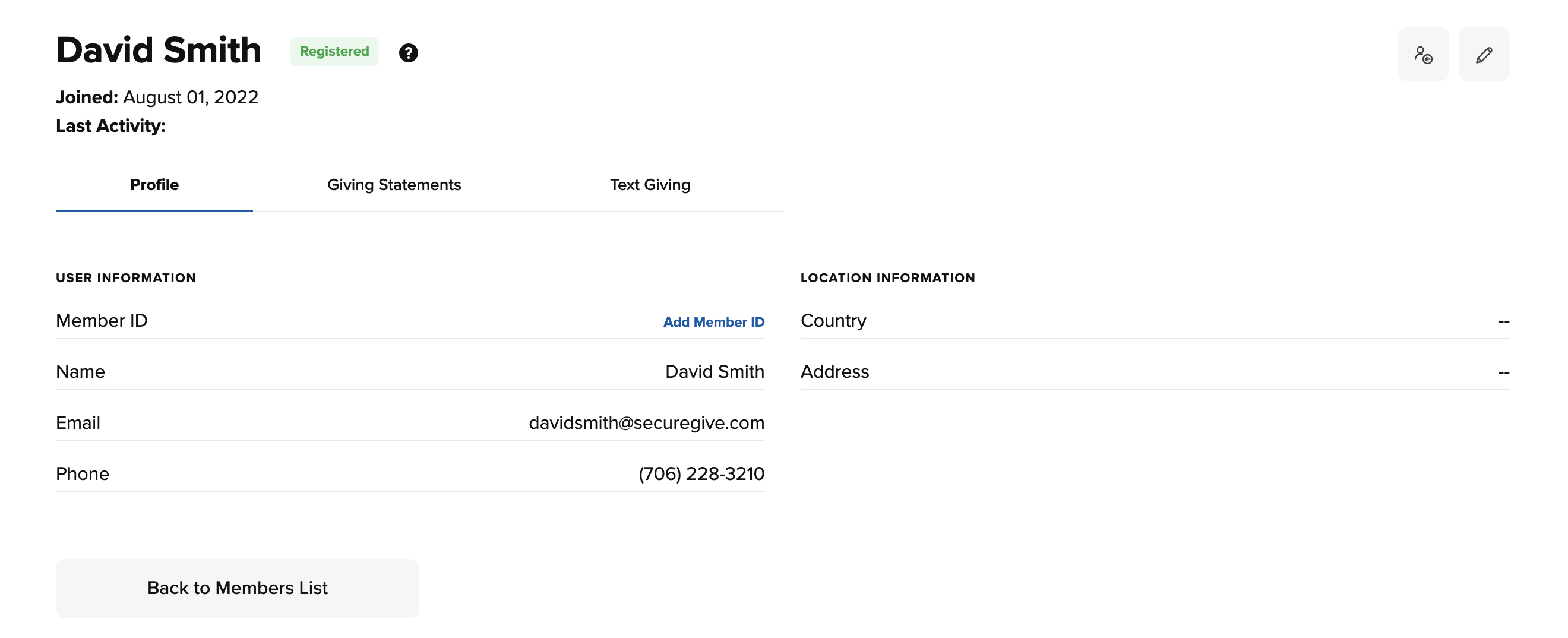
Member profiles allow you to view and edit the details of each donor profile like name, email, phone, and address. You can also quickly view their individual giving statement and the number they use for text giving.
*Please note, if a member belongs to multiple organizations, you will not be able to edit their profile. Please contact SecureGive to edit the member's information.
View Member Information
You can view a member's profile by going to Users > Members and then searching and clicking on the donor's profile. From there, you'll see the information that the member entered when they created or last edited their profile.
The Giving Statements tab allows you to view and print a member's giving statement.
Click the Text Giving tab to see the phone number that the member entered when they set up their device for text giving.
Member ID
You can add a member ID from the donor's profile by clicking the Add Member ID link, entering their Member ID, and then clicking the Update Member ID button. If you're exporting transaction data from SecureGive to one of the donor management system's that we have a direct API with, you'll also see one or more possible API matches appear in the Add/Update Member ID window at the right. Select from one of the matches that you want to connect the member to, and then click the Update Member ID button.
Merge Member
You can merge member profiles by following the steps in the Help Center article HERE.
Edit Member Information
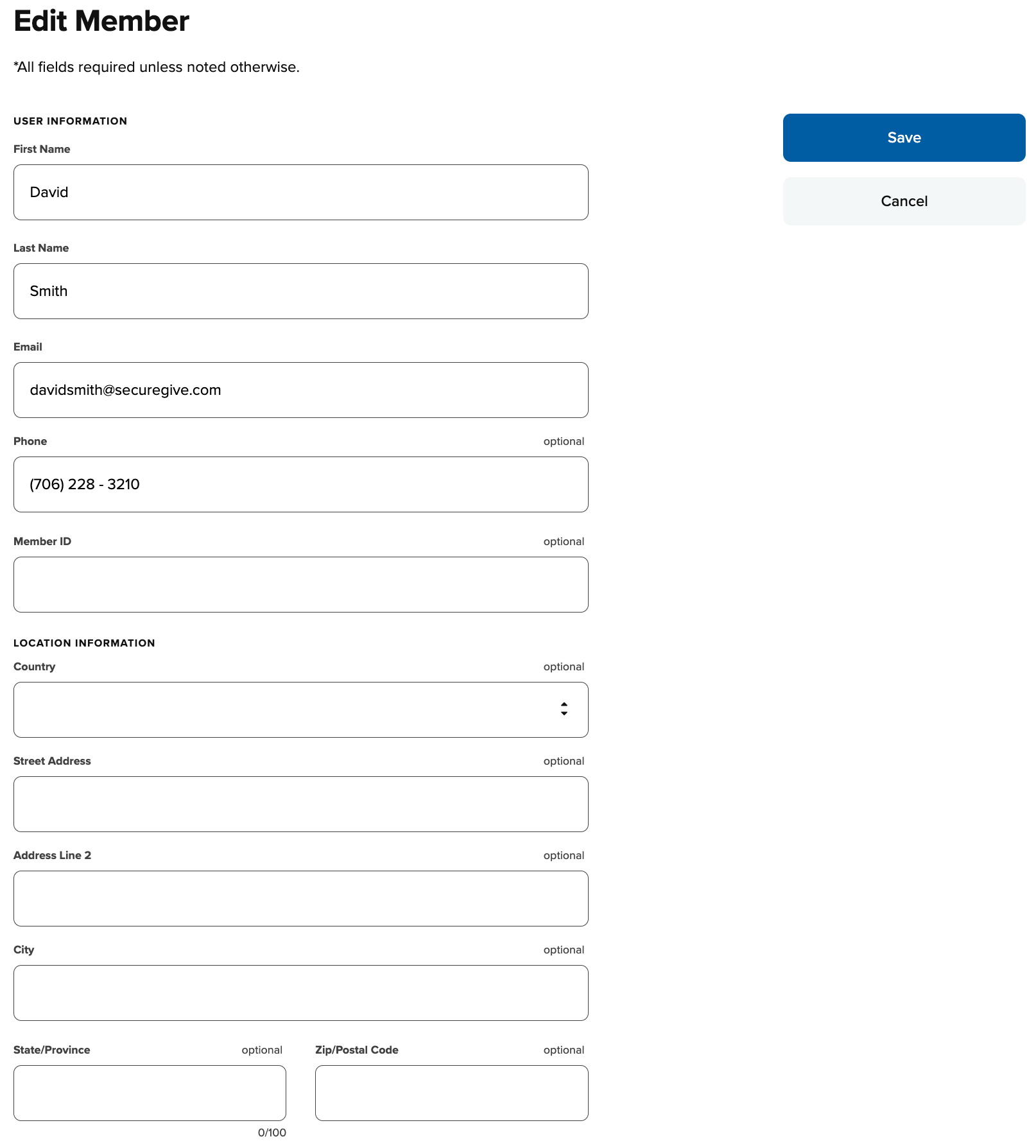
You can edit a member's personal details by clicking the edit pencil icon at the top right corner. Once you've made changes, then click Save. Please note that the member will receive a email notification whenever you make a change to their profile.
Member ID
You can also add a member ID from the Edit Member page by clicking the Member ID field, manually entering the member ID, and then selecting Save. If you're exporting transaction data from SecureGive to one of the donor management system's that we have a direct API with, you can also click the Find Matches button next to the Member ID blank to see one or more possible API matches appear in the Add/Update Member ID window at the right. Select from one of the possible matches that you want to connect your member to, and then click the Update Member ID button.