
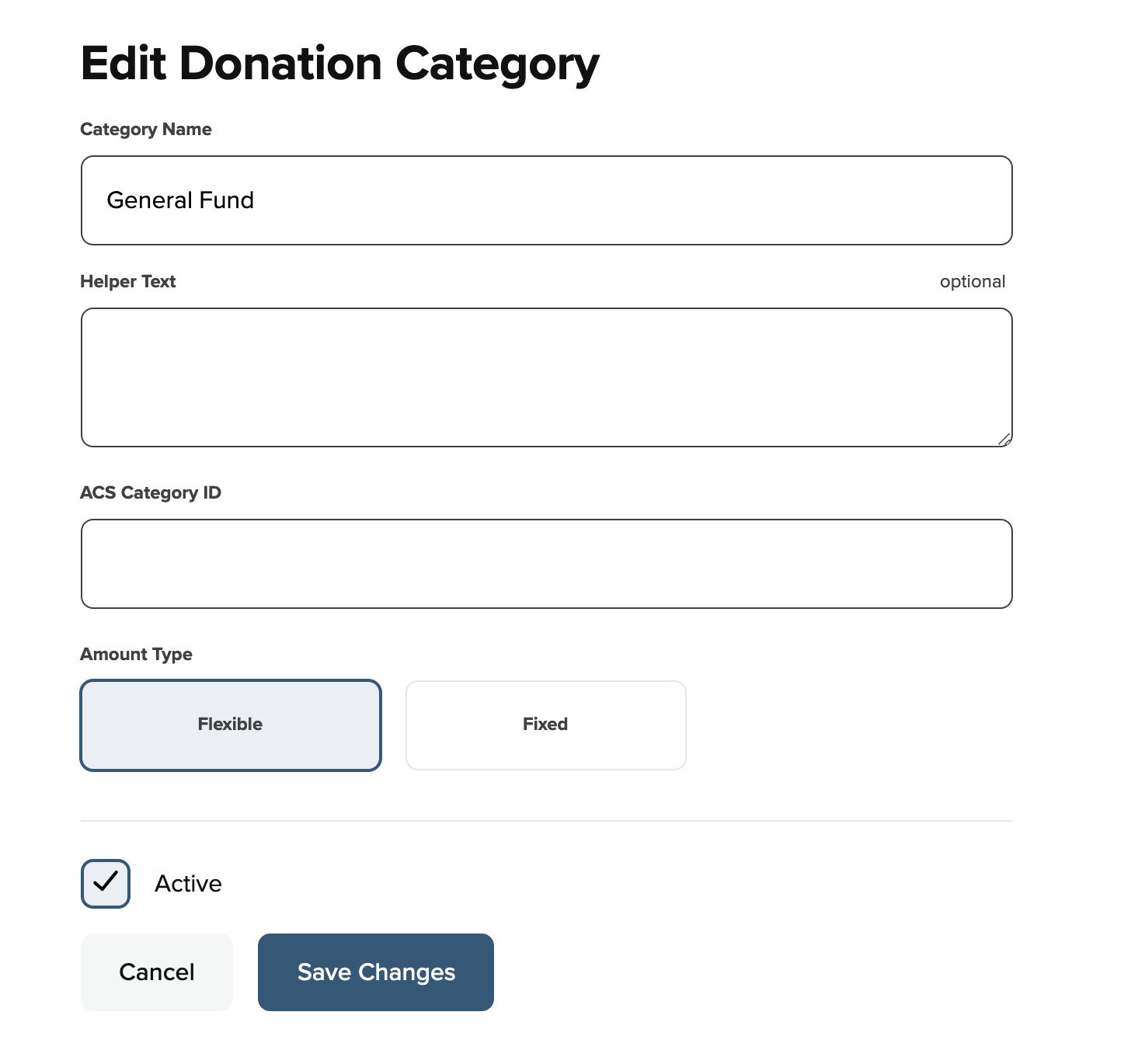
- Input ACS fund IDs for all Donation and Purchase Categories in SecureGive- Do this by going under Categories > Donations or Purchases and clicking the edit pencil to the right side of the category. You will see a blank for the Fund ID. Be sure to Save Changes after adding it.
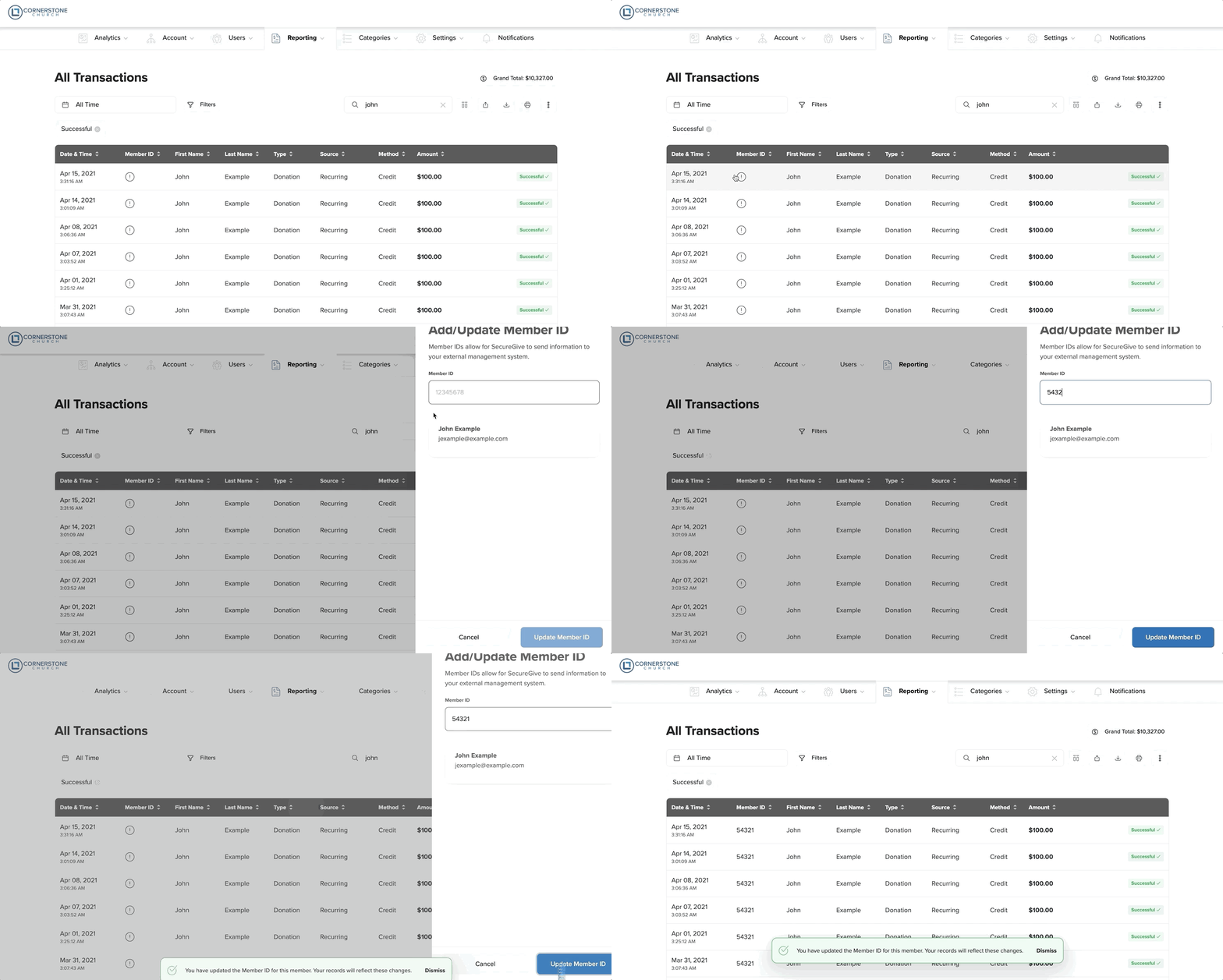
- You will need to input the ACS Member ID into the Member ID field for each member profile in SecureGive. You will only have to do this one time for each member, and it will stay connected to them for all future transactions. Do this by clicking the exclamation point in the Member ID column from the “All Transactions” page, and then enter their Member ID and choose the Update Member ID button.
You can also add a Member ID from the donor's profile by clicking the Add Member ID link, entering their Member ID, and then clicking the Update Member ID button. You can also click the Edit pencil at the top right, scroll down to the ACS Member ID blank, and then input the Member ID there. Be sure to select Save.
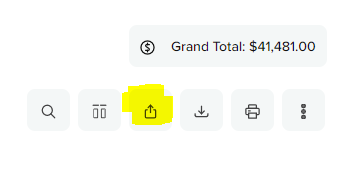
- To export, go under “Reporting” to “All Transactions.” Use your Search bar to choose your date range. Use the “Totals” option from the report to get your “Grand Total” to enter in ACS. Then, click the “Export to ACS” option and save the file.
- We recommend that you set a schedule for exporting. For Example – Run your export every Monday for the previous Monday – Sunday. We also recommend that you include the export dated in the name of the file when you save it to avoid confusion over what may have already been done. SecureGive does not record what dates you have exported.
- Go to ACS and “Start a New Batch” under Enter/Post Contributions. Enter your posting date. For “Description,” you can enter date range for the file or enter something like “SecureGive transactions” or “Credit Card transactions.” For Expected Amount, take the amount from the “Grand Total” in your transactions report.
- Go to the Import button, then click on “File Import”
- Change the File Type to Comma Separated Values
- Gift Date = Posting date
- Omit First Record should be checked
- Select Payment Type can be either Online or Credit Card
- Transaction Type – Regular Gift
- Click Import. Then go to where the export file is saved on your computer. Double click on the file and it will begin importing.
- If you get a message that all transactions were not entered, you can print the list to see what did not import. These will need to be manually entered in to ACS. You should also check in SecureGive to be sure an envelope number (Member ID) and a Fund ID were assigned for each of these transactions.