
SecureGive has coordinated with Arena for a customized donation report. In order to successfully export to Arena, the Fund ID and Member ID in SecureGive must match what is assigned in Arena.
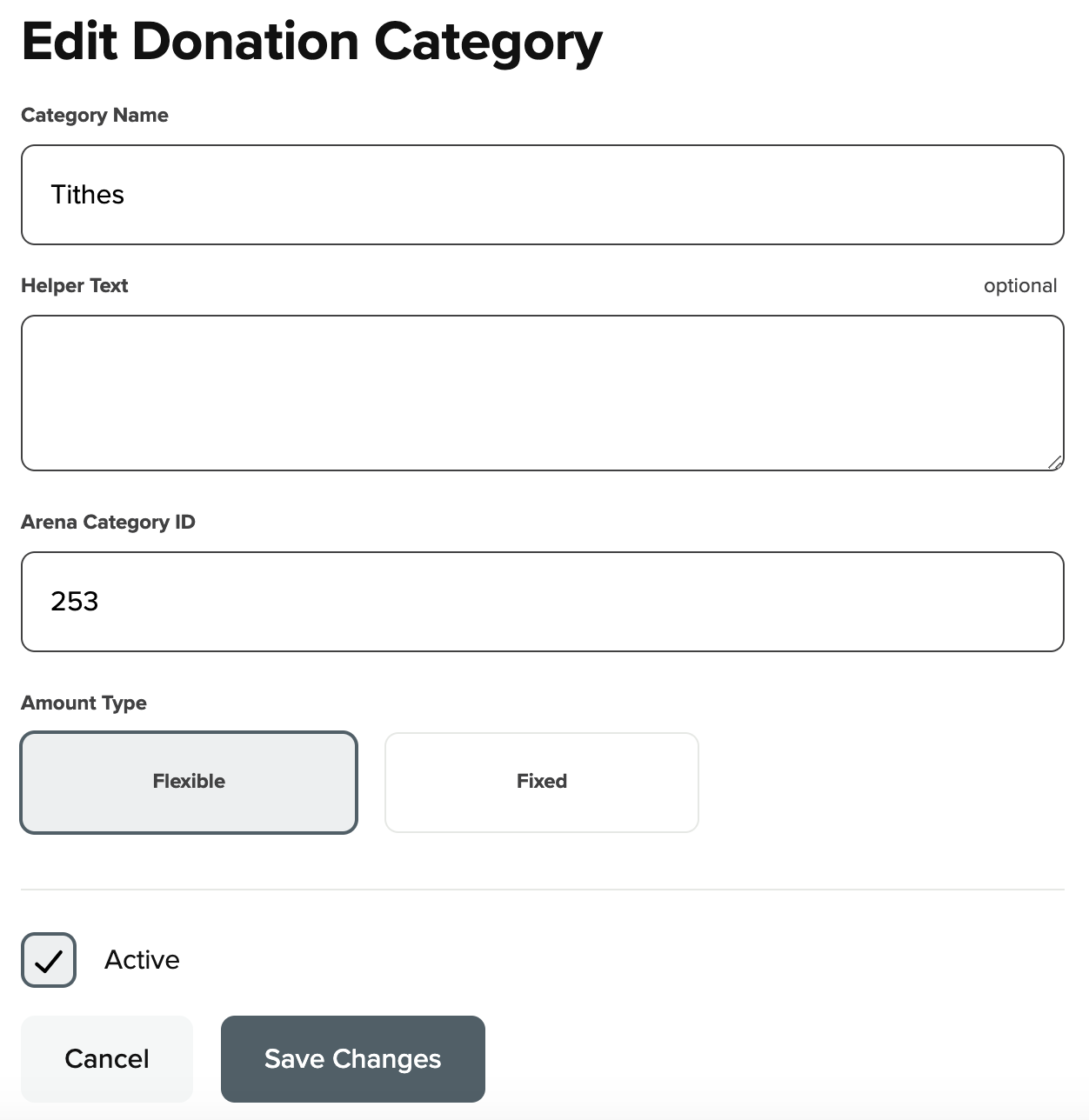
To input category IDs (Fund Codes in Arena) in SecureGive: Go to Categories > Donations. Click on the name of the category. Input the Arena fund code into the Area Category ID field and be sure to save.
* Please note that even though your Arena code may be longer, the import process to Arena only allows the first 5 characters with no spaces or special characters.
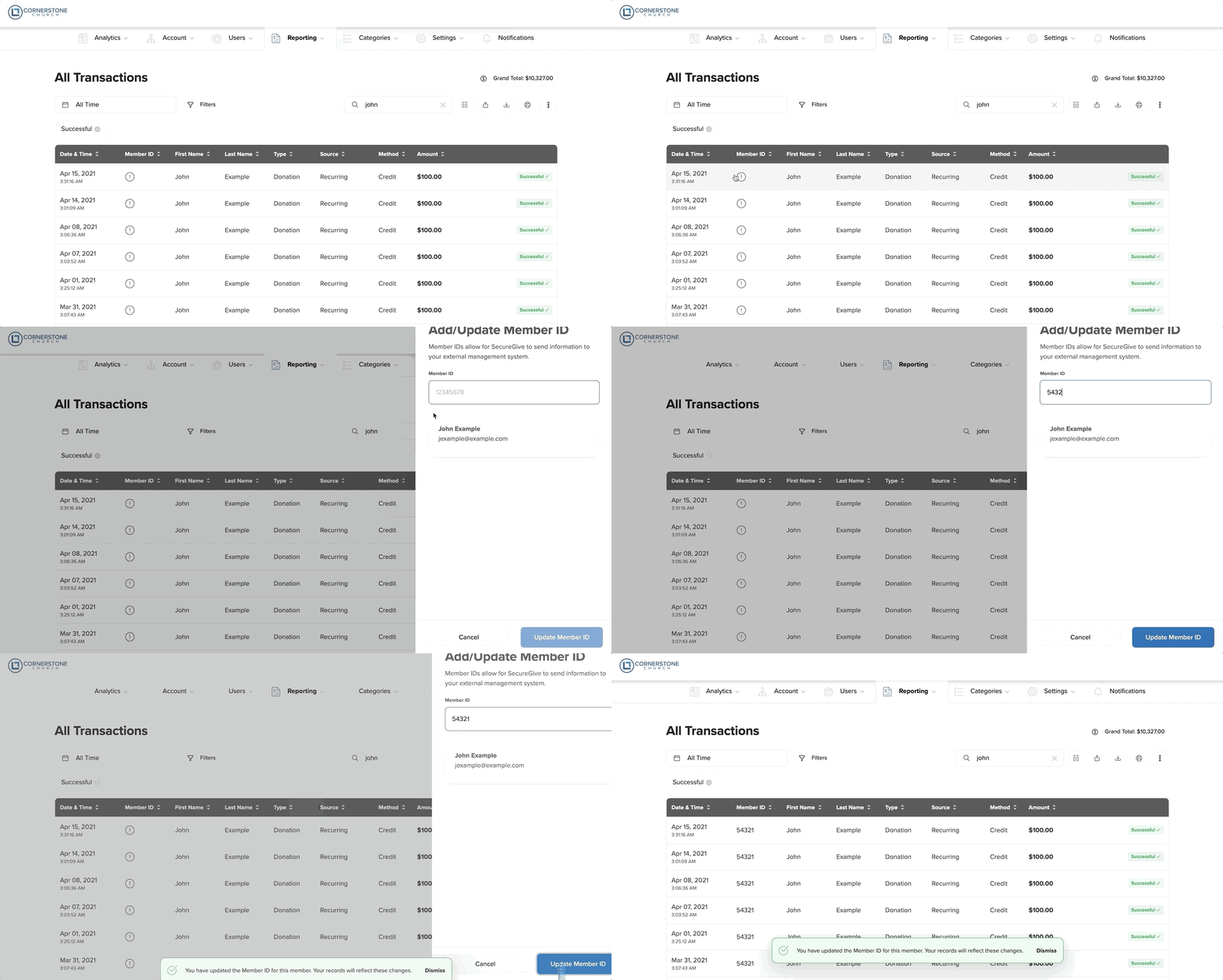
Input the Arena Member ID into the Member ID field for each member profile in SecureGive. You will only have to do this one time for each member, and it will stay connected to them for all future transactions. Do this by clicking the exclamation point in the Member ID column from the “All Transactions” page, and then enter their member ID and choose the Update Member ID button.
You can also add a member ID from the donor's profile by clicking the Add Member ID link, entering their Member ID, and then clicking the Update Member ID button. You can also click the Edit pencil at the top right, scroll down to the Arena Member ID blank, and then input the information there. Be sure to select Save.
With these two items in place, you can go to “All Transactions” and use the date range selector to choose your report dates. After you have selected your dates, hit the “Export to Arena” button and save the file to be imported into Arena. Please do not open the file before you save it.
** You will need to download a custom module from Arena that is built to facilitate the importing of SecureGive transactions. This can be found in the Arena Hub under Administration>Arena>SecureGive Import.
Follow the Arena instructions from there.