
- Run Your SecureGive All Transactions report for whatever dates are needed.
- Check the Member ID column to see if any Member IDs are missing.
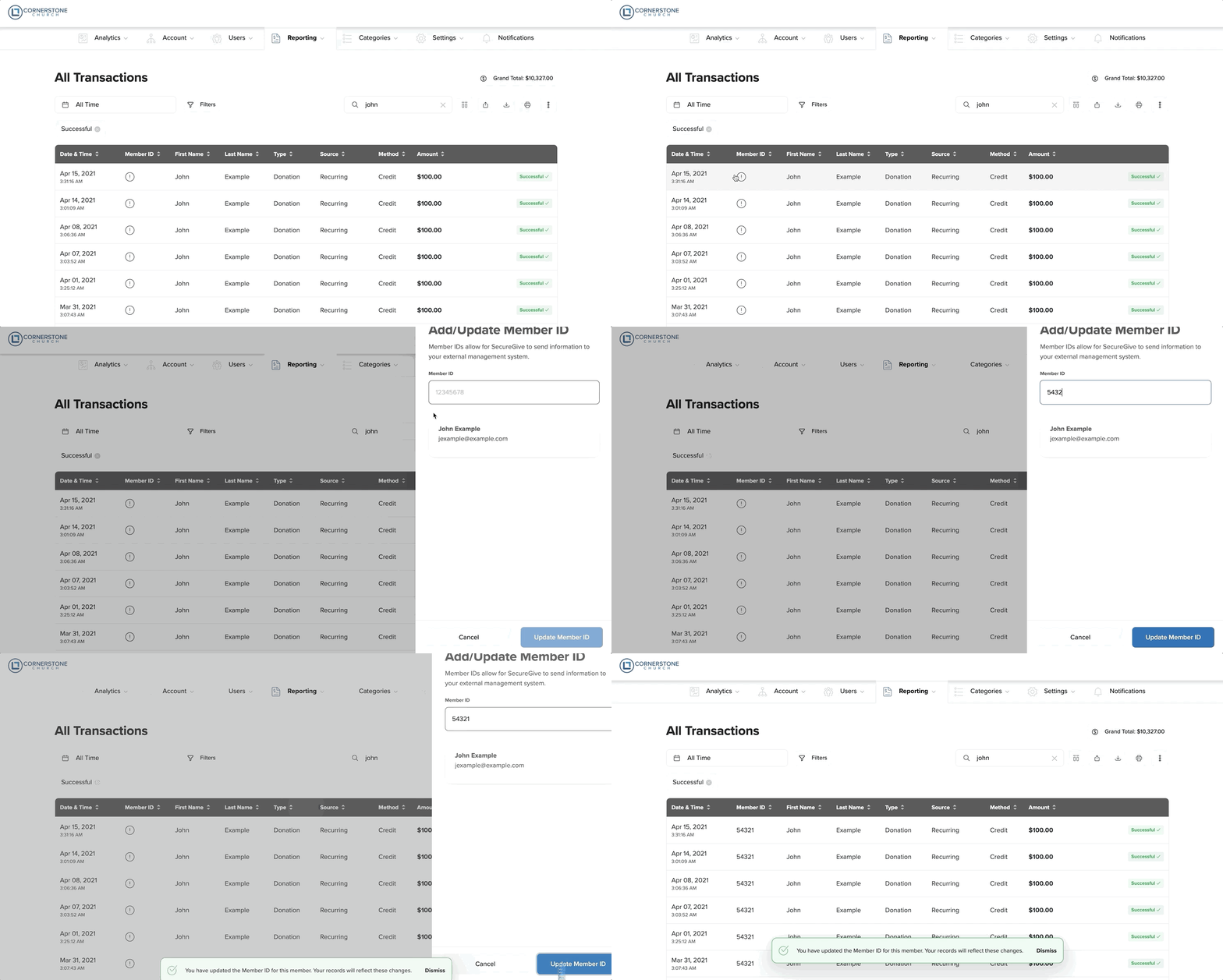
- You will need to input the Breeze Member ID into the Member ID field for each member profile in SecureGive. You will only have to do this one time for each member, and it will stay connected to them for all future transactions. Do this by clicking the exclamation point in the Member ID column from the “All Transactions” page, and then enter their Member ID and choose the Update Member ID button.
You can also add a Member ID from the donor's profile by clicking the Add Member ID link, entering their Member ID, and then clicking the Update Member ID button. You can also click the Edit pencil at the top right, scroll down to the Breeze Member ID blank, and then input the Member ID there. Be sure to select Save.
- Open Breeze to find member IDs. When you click on a person’s record in Breeze, their Member ID will be represented as a portion of the URL in your address bar. Input this number into the Member ID field in SecureGive and Save.
- Please note, the names of your SecureGive categories will need to match the names of your Breeze funds. You can manage these under Categories > Donations or Purchases.
- After doing this, you can click the Export to Breeze button at the top of the transaction report and save the file. This will be in the correct format to import into Breeze.
- In Breeze, Check More, then Bulk Tasks
- Click Import Giving
- Change Format from Breeze to SecureGive.
- Click on Import Giving File.
- Click to Browse for File
- Find the exported file that you saved and choose it.
- If any names in Breeze are not linked yet, it will show you a list of them. Type in the name of the person and it will be linked. After all are completed go back and Click to Browse for file and find it again. This time there should be no errors and it should say imported successfully.
- Click on More then Contributions to show the batch.
- Click on View Batch to bring up transactions
- Scroll to Bottom to see Funds Overview
- Verify that Fund Amounts agree with Column totals.