
To use your export file for QuickBooks Non-Profit 2014, you will need to make sure the necessary information is entered in the SecureGive system. QuickBooks Non-Profit 2014 requires that Member IDs are entered to be able to import transactions to their database.
To Connect Member IDs: You will need to input the QuickBooks Member ID into the Member ID field for each member profile in SecureGive. You will only have to do this one time for each member, and it will stay connected to them for all future transactions. Do this by clicking the exclamation point in the Member ID column from the “All Transactions” page, and then enter their Member ID and choose the Update Member ID button.
You can also add a Member ID from the donor's profile by clicking the Add Member ID link, entering their Member ID, and then clicking the Update Member ID button. You can also click the Edit pencil at the top right, scroll down to the QuickBooks Member ID blank, and then input the Member ID there. Be sure to select Save.
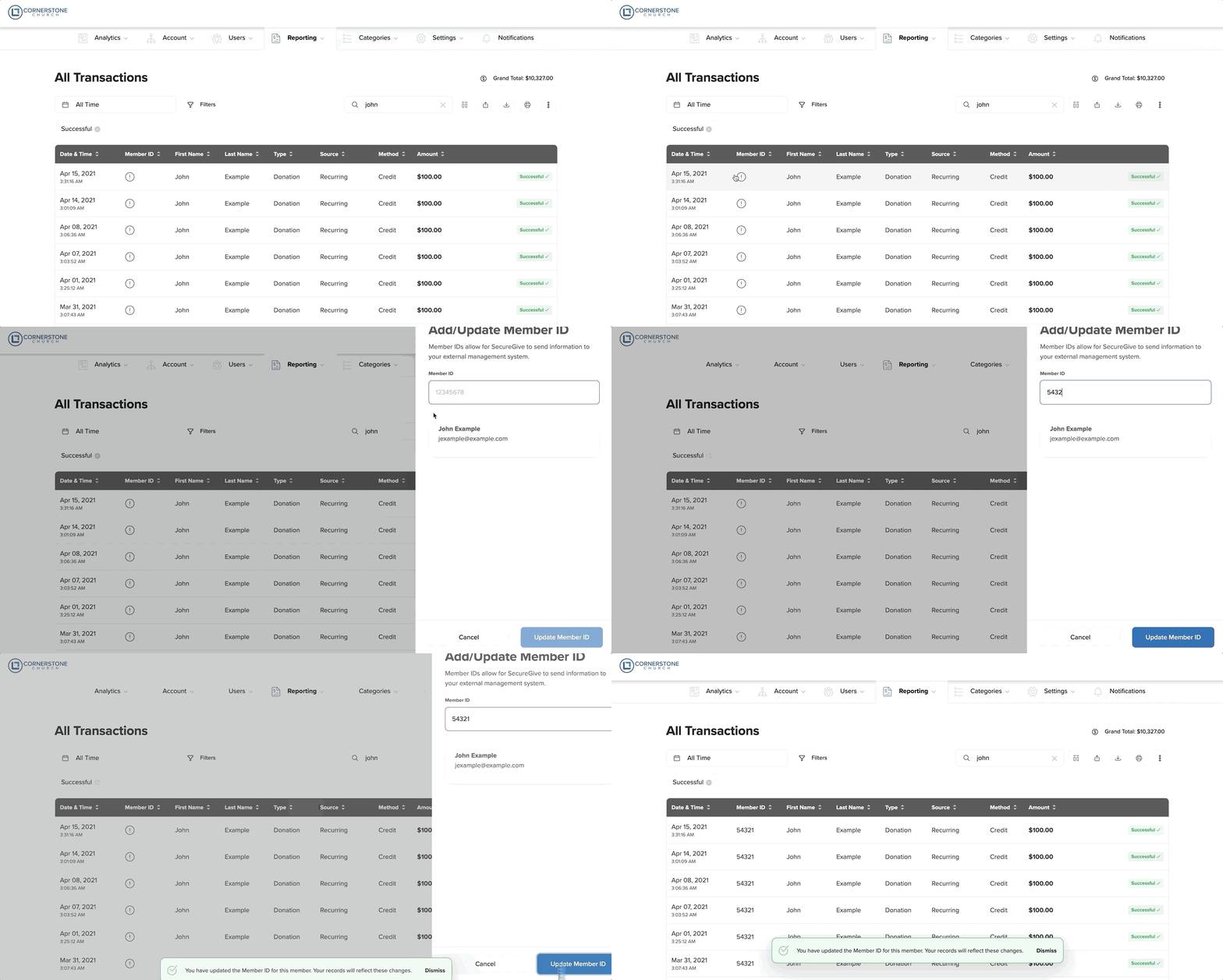
Once the Member IDs are saved, you will go to Reporting > All Transactions and use the date selector to choose the dates you’d like to export. You’ll use the “Export to QuickBooks” option to save your QuickBooks file to the computer. From here, you’ll need to follow the QuickBooks import instructions. If you do not have those instructions, you can reach out directly to QuickBooks, and they can assist!