You can create, edit, and delete Text To Give keywords by going to Categories > Text To Give. Then follow the steps below.
How to create a Text To Give keyword
1. Click on the the  icon at the right.

2. Then enter in the keyword name, campus, and category.
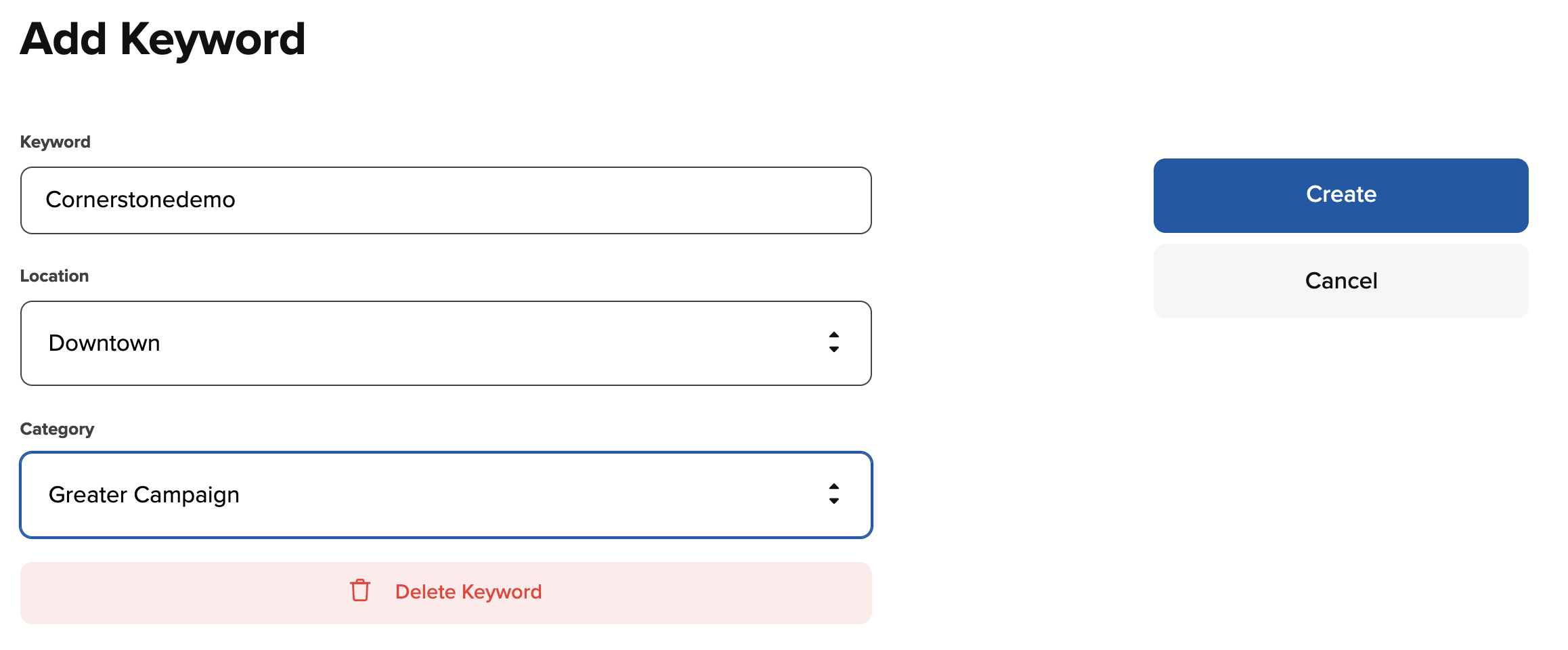
3. Select Save to save the changes. You have now created a new Text To Give Keyword.

How to edit a Text To Give keyword
1. Click on the Text To Give keyword detail.
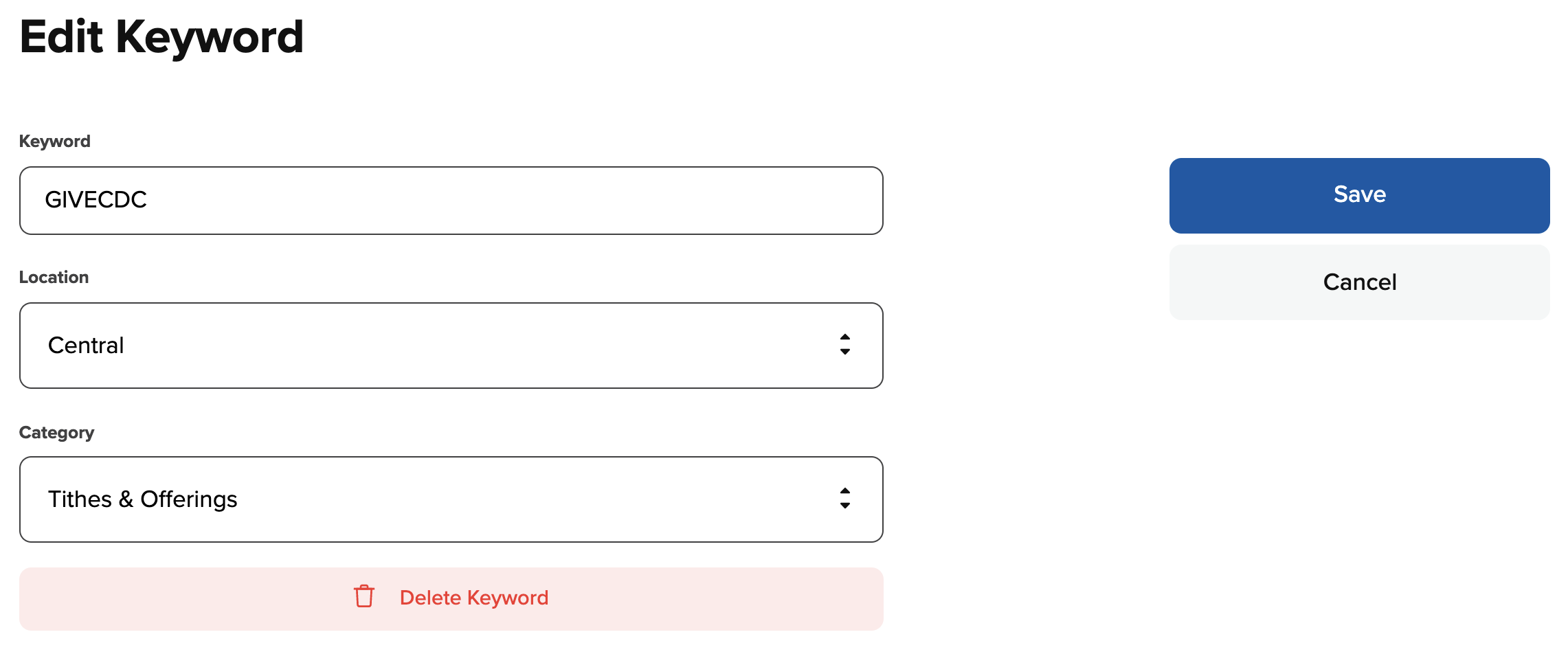
2. Then edit the keyword name, campus, or category.
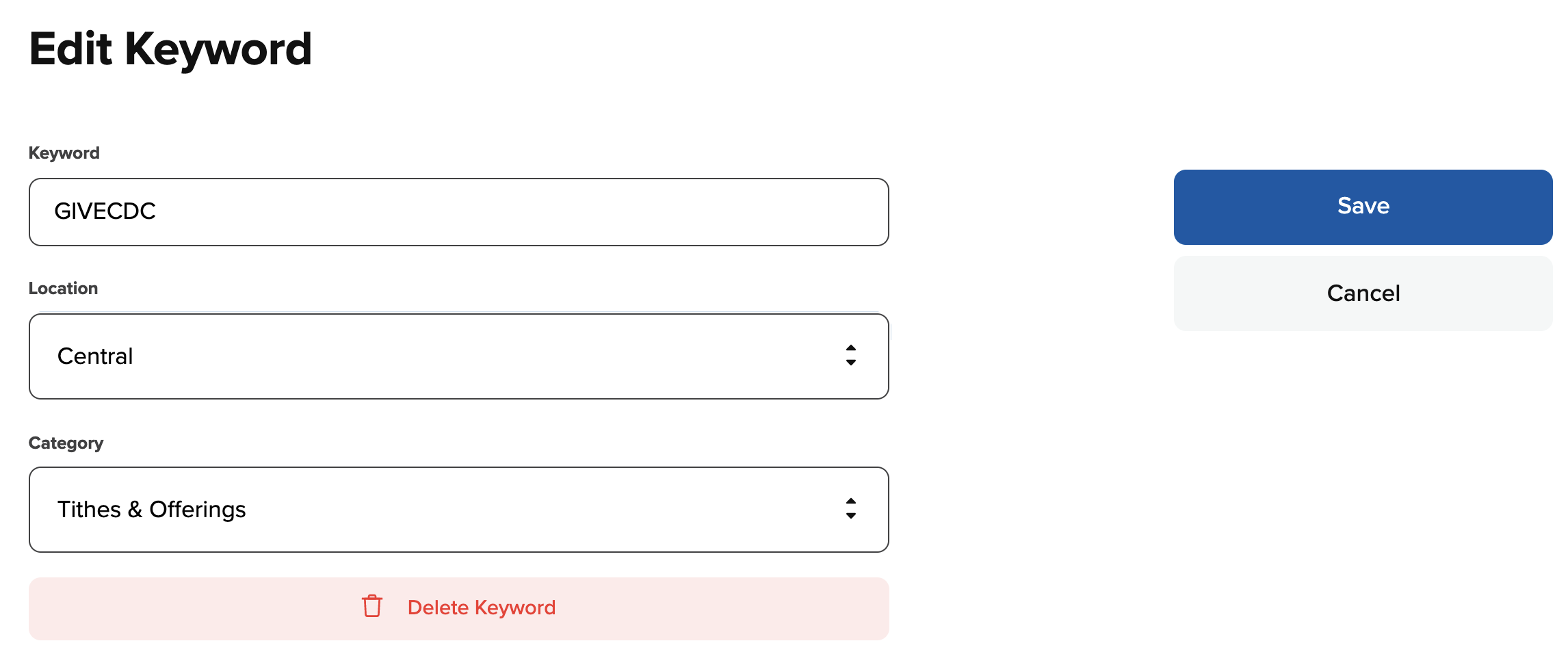
3. Select Save to save the changes. You have now edited your Text To Give Keyword.

How to delete a Text To Give keyword
1. Click on the keyword detail.

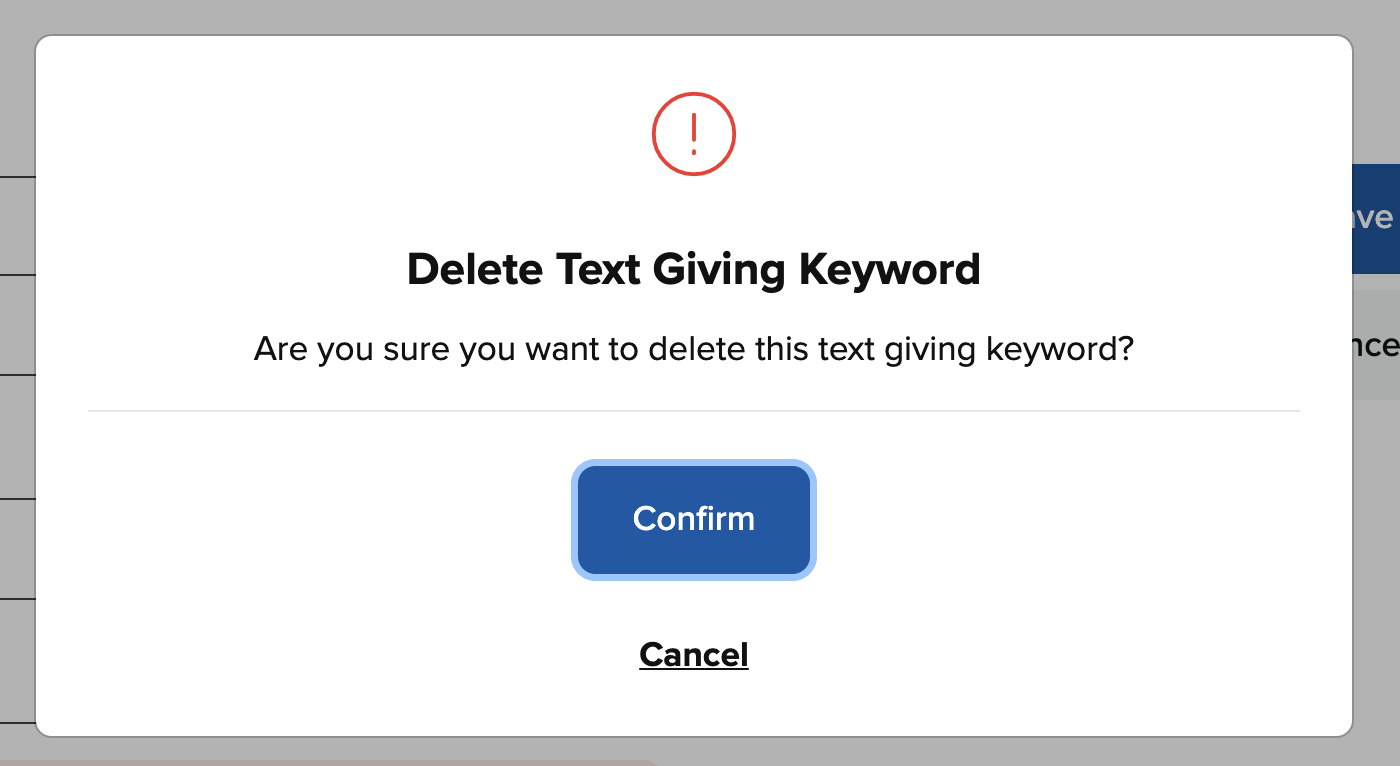
2. Then click on the red Delete Keyword button.
3. Then click Confirm.