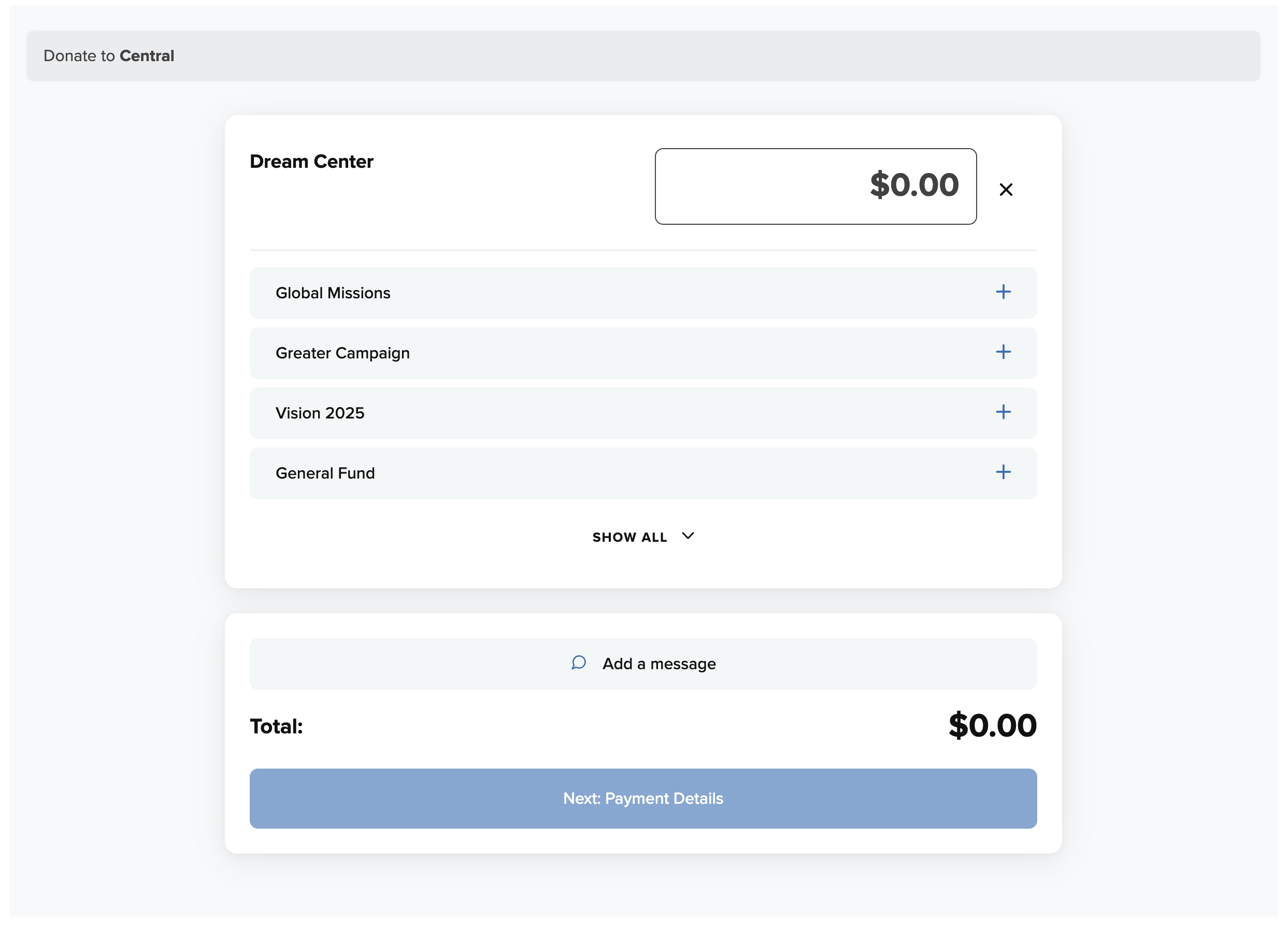
Using the Embeddable Widget allows your organization to accept guest donations from directly within your website. Please note that only one time donations can be made from the widget. Also, donors will not be able to sign into their profiles, so therefore the widget only supports donations as a Guest.
Secure your organization's website with an SSL certificate and HTTPS
We recommend installing the embeddable Widget only on websites that are secured with HTTPS. To enable HTTPS on your website, you must acquire an SSL certificate. If you would like to learn more about HTTPS (Hypertext Transfer Protocol Secure), then click HERE.
You can easily see if your website is using HTTPS by opening your organization's website from a computer and then double-clicking on the address bar. If you see "https" at the beginning of the web address, then your site is secure with HTTPS. Here is an example: https://app.securegive.com/login. Also, look for a padlock icon on the address bar.
Contact your website administrator to have HTTPS enabled.
Follow the steps below to set up the Embeddable Widget
- Log into your SecureGive administrative profile at https://app.securegive.com/
- Go to Categories > Embed
- Choose a location and transaction type. Then the Embed Code will appear in the field to the right. Click the COPY button to copy the code into your clipboard. Then share this code with whoever manages your website.
- Click on the Show Preview button to see what the embeddable widget will look like.