
If the touchscreen on your Olea stand-alone kiosk isn't properly recognizing finger taps, then follow the steps below to complete a touchscreen calibration. You may have to connect a mouse to the computer to initiate the calibration.
1. Close the kiosk app. If you don't how to close the kiosk app, then read this Help Center article:
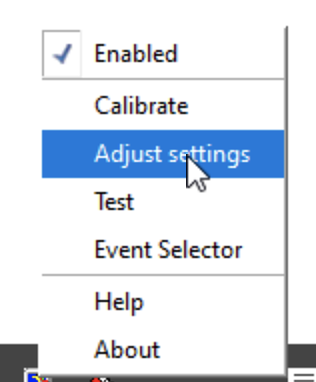
2. Right-click on the Pointer Device Settings icon at the right of the Taskbar. (You can also replicate a right-click with your finger by pressing and holding on the icon.)

3. Choose Adjust Settings in the menu.
4. Highlight the Calibration tab on the left side of the UPDD Console.
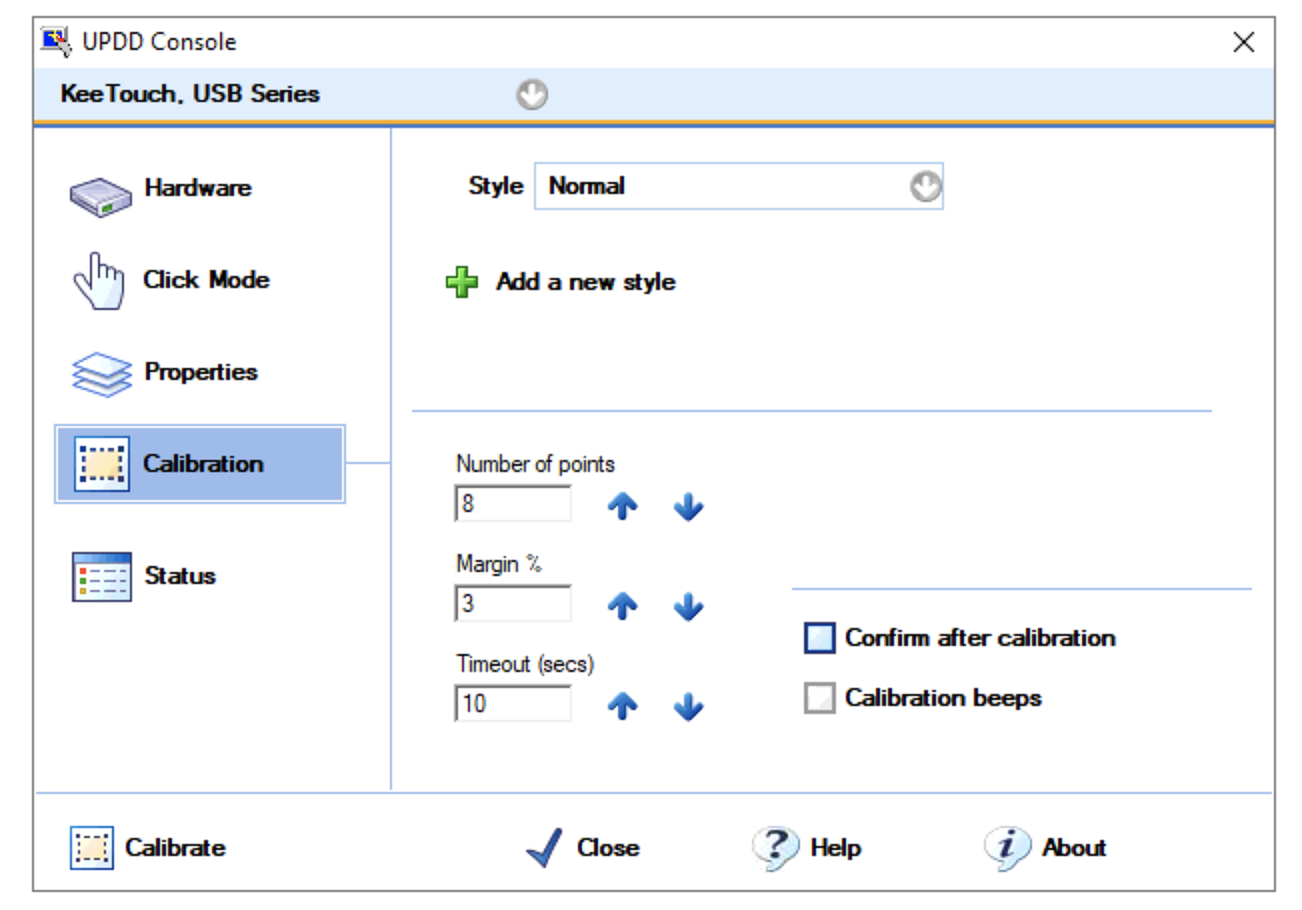
5. Change the number of calibration points to 25 and check the Confirm After Calibration box.
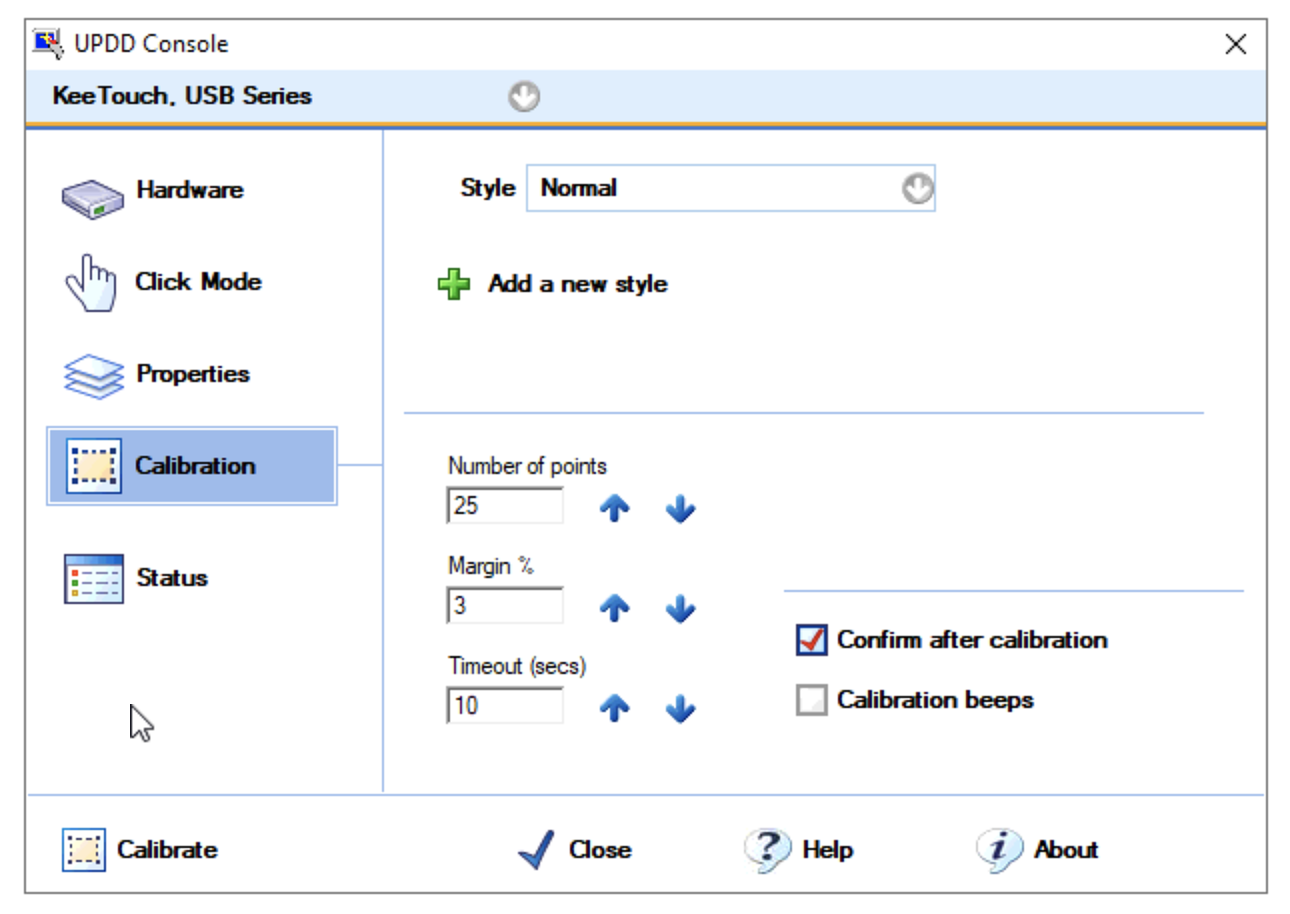
6. Tap on the Calibrate button at the lower left corner of the UPDD Console.
7. Touch the touch points and then confirm.
If after completing the calibration process the touchscreen is still not responding to touch, then read the Help Center article below:
Touchscreen Not Working (Olea Stand-Alone Kiosk)